


 A+ Member


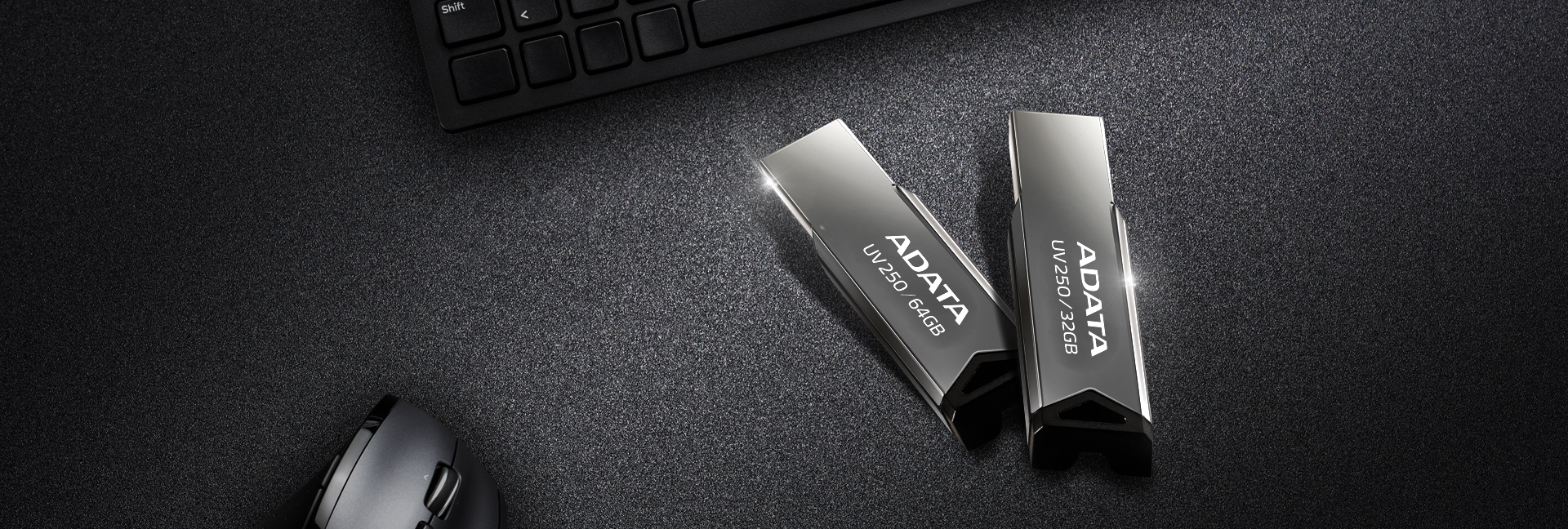
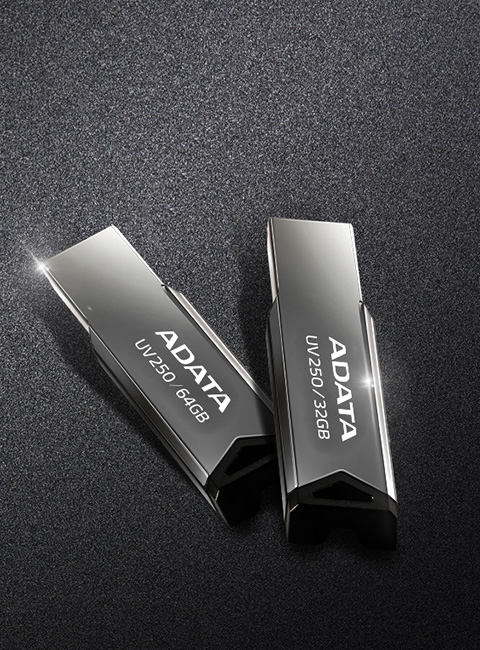
Sporting a sleek, clean capless design and up to 64GB of capacity, the UV250 carries your data in style.
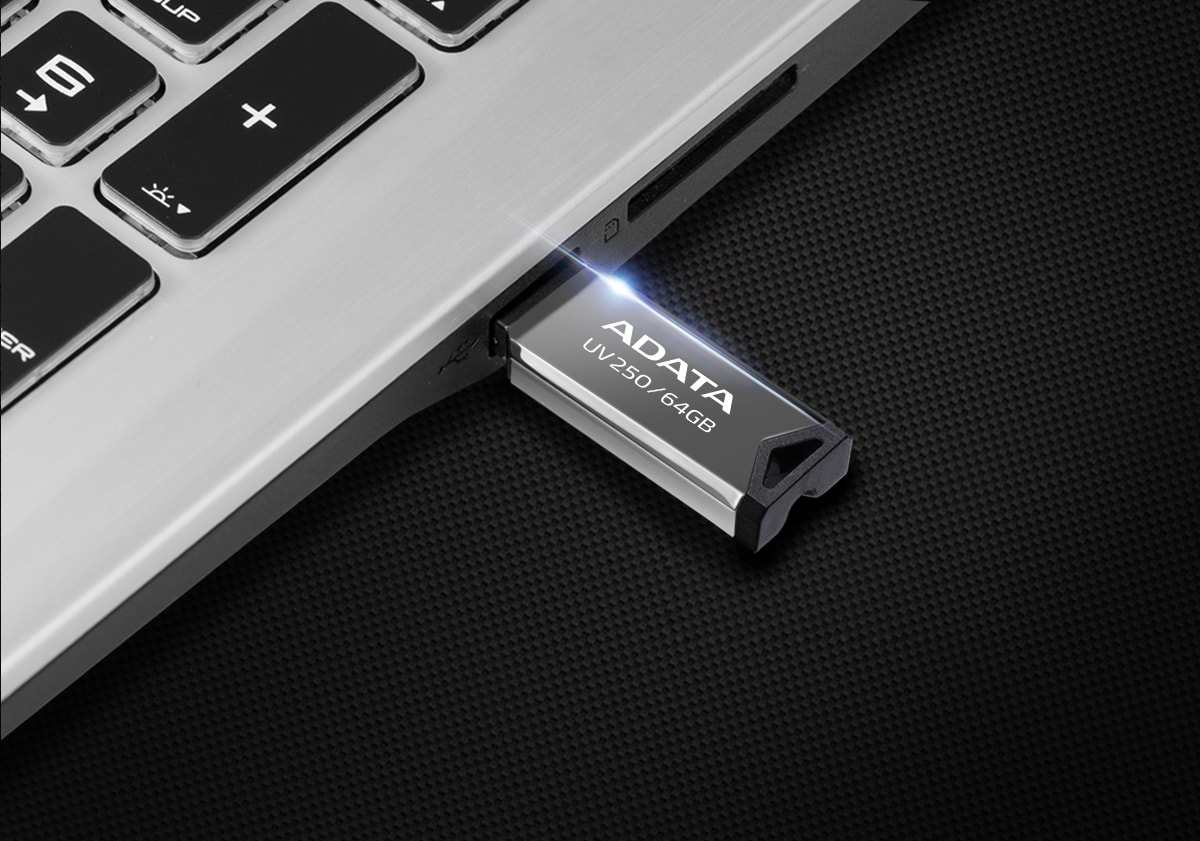
A Sense of Sophistication
A Range of Capacities

Easy Going
Near Universal Compatibility

Backup ToGo Smart Backup Software
Backup ToGo uses an algorithm to back all your data intelligently and with ease. Set your desired backup schedules and never worry about data loss again! What's more, Backup ToGo features a cloud backup function, which supports backup onto the cloud, local hard drives, and even on mobile devices. With Backup ToGo, users can enjoy a tool with an intuitive interface that makes data backup a snap!
| Capacity | 16GB / 32GB / 64GB |
|---|---|
| Color | Black |
| Texture | Metal (mirror finish) |
| Dimensions ( L x W x H ) | 42.4 x 14.95 x 5.35mm / 1.7 x 0.6 x 0.2inch |
| Weight | 5.6g / 0.2oz |
| Interface | USB 2.0 |
| Performance | N/A |
| System requirements | Windows Vista, 7, 8, 8.1, 10, 11, Mac OS X 10.6 or later, Linux kernel 2.6 or later, with no device driver needed |
| Warranty | Starting from January 1, 2019, the warranty period for the UV250 is changed to 5 years; For UV250s purchased before (inclusive) December 31, 2018, the warranty period remains unchanged. |
| Remark |
|
- A: The theoretical value of USB 3.0, USB 3.1 Gen1, and USB 3.2 Gen1 transmission is 5 Gbps and the only difference is in naming. In 2019, the USB-IF Association officially defined USB 3.2 as the official designation to replace USB 3.0 and USB 3.1 Gen1.
- A: Please insert the USB flash drive into the USB port on the computer and a file folder window will pop-up automatically on the computer screen. If you do not need to use the USB flash drive, please click on "safely remove hardware" and choose "exit USB disk." Remove the USB device from the computer. Mac users can click the USB flash drive⏏ Eject button in the Finder sidebar or drag the disk icon of the drive you wish to eject directly to the Trash on the desktop.
- A:
●In a desktop host, inserting the USB device in a rear port is recommended.
●In a desktop host, avoid using the front USB port, an USB hub, or USB extension cable.
● Avoid using multiple USB devices simultaneously, so as not to cause damage to the flash drive due to insufficient power supplied to the USB port during data transmission.
●After using the USB device, correctly perform the "safe removal of hardware" action before removing the USB device.
●If the USB device holds important data, please keep a backup on another storage device. Since all storage devices have a life expectancy, a particular drive will not be able to store data "in perpetuity." - A: The commonly used file system formats in the Windows OS can be roughly divided into three type FAT32, NTFS, and exFAT. Users can switch between these file systems by using the formatting action in the operating system. FAT 32 has a single file transmission size that cannot exceed the limit of 4GB. If you require larger-sized file transmission, please use the NTFS or exFAT formats. NTFS works with all versions of Windows, though Mac OS can only read NTSF files in generally. exFAT is basically compatible with all versions of Windows and newer versions of Mac OS. Please note whether or not other multimedia devices (such as tablet computers or mobile phones, etc.) support NTFS and exFAT formats.
- A: The transmission speed of USB 2.0 is theoretically slower than that of USB 3.0 (rebranded USB 3.2) but the function of data storage is the same. A standard USB 3.0 USB device and the corresponding slot is backward compatible with the older USB 2.0 interface.
- A: Please go to "CONSUMER PRODUCTS" on the ADATA website, click on "Products," then choose "USB flash drive." Next, on the responding USB product page, choose "Specification" or go to the product page and click on "Download" to download the specifications file.
- A:
Please follow troubleshooting steps as below:
1. Be sure to update OS, USB controller drivers, and system BIOS to the latest version.
2. Try other USB ports instead. If the USB port cannot provide enough power, functional issues may happen. Some systems may require the drive be inserted into the USB ports on the back of the computer to ensure the USB flash drive works properly.
3. Please disable all programs running in the background in order to prevent system failure due to software conflicts.
4. If the above measures do not solve the problem, please contact ADATA tech support or return the product to the nearest ADATA service center. - A: USB 3.0 (rebranded USB 3.2) can be compatible with older USB 2.0 specifications and the function of reading and writing will not be affected. Inserting an USB 3.0 into an USB 2.0 slot may limit transmission speed.
- A:
Windows OS Please go to "My Computer," right-click on the icon of the USB flash drive, and then click on "Content." The capacity of the USB flash drive will be displayed. You can also verify the capacity of the USB flash drive through "Disk Management" in "Computer Management."
Mac OS On your Mac, in a Finder window or on the desktop, select the USB flash drive, then "Choose File" > "Get Info," or press Command-I to open a disk information window where you can find the capacity of the USB flash drive.
- A: Both the USB drive and SSD store data through NAND Flash storage components. NAND Flash stores data through charging and discharging electricity (writing/erasing). Such storage devices have the advantages of light weight, small size, energy conservation, vibration-resistance, and superior performance.
- A:
1. USB Type-C is a new generation USB connector developed by the USB-IF Association.
2. There is no difference between the top and bottom of the USB Type-C connector and both orientations can be used.
3. The advantage of the USB Type-C connector is that it can transmit data at a higher speed, ultra-high-resolution video, and high-power power source transmission. - A: The differences in displayed capacity are due to computer operating system calculations differing from storage device Controller IC calculations. The storage device is usually calculated in the decimal system, while the computer operating system is calculated on the basis of the binary system. The calculation of the storage device: 1TB=1000GB, 1GB=1000MB, 1MB=1000KB, 1KB=1000Bytes. The calculation of the operating system: 1TB=1024GB, 1GB=1024MB, 1MB=1024KB, 1KB=1024Bytes. For example, a storage device marked with having 128GB capacity, 128GB=128*1,000*1,000*1,000=128,000,000,000Byte. However, the computing unit of computer calculation is a binary system, so the 128GB calculated by the storage device is converted into bytes, 128,000,000,000Bytes, so what will be displayed through the computer’s calculation method is 128,000,000,000/1024/1024/1024≒119GB. The fastest way to calculate: The capacity labeled on the product x 0.93 is about equal to the actual capacity recognized by the computer.
- A: A metal UFD case conducts temperatures similar to the operating temperature of internal parts, so it feels different from a case made of plastic materials. This is a normal phenomenon, please feel secure while using the UFD.
- A:
The maximum theoretical transmission rate of USB interfaces are:
USB 1.0 -> 1.5 Mbps.
USB 1.1 -> 12 Mbps.
USB 2.0 -> 480 Mbps.
USB 3.2 Gen1 -> 5 Gbps.
USB 3.2 Gen2 -> 10 Gbps.
USB 3.2 Gen2 x2 -> 20 Gbps. - A: Right-click on the icon of the USB device, choose "rename" to change the name of the USB. Or, through formatting, change the name in the column "Disk label." Before formatting, please backup data to avoid deletion due to formatting.
- A:
Windows OS Click and open "My computer." Right click on the "format” icon of the USB you want to format, set up "disk label," "file system," and "configuration unit size." If there are no other special demands, you can choose default and follow the steps to complete formatting. Or, in "Control panel," enter "device manager," right click on "disk management" and click on "format," set up "disk label," "file system," "configuration unit size." If there are no other special demands, you can choose default and follow the steps to complete formatting. Formatting clears the files in the USB device. Before performing formatting, please backup important data to avoid loss.
Mac OS Launch "Disk Utility" from "Utilities" in "Applications." Select the USB drive from the list on the left and select "Erase" at the top menu. Type in the "Name" of the drive and select "Disk Format" and finally click "Erase" to complete USB flash drive formatting..
- A: USB Type A and USB Type-C are two interfaces with different connector structures, so they cannot be used together. Consumers should pay attention to whether or not their host device supports the interface slot of the corresponding USB device.
- A: Please avoid unplugging the USB device during data transfer, this action may cause data loss during the transfer process, or even cause abnormalities in USB device functions. When finished using the USB device, please select "safely remove the device" on the Taskbar, and then unplug the USB device from the slot.
- A: Please go to "Support" on ADATA's official website, click "Contact Customer Service" and then select "ADATA Service Center" to display information regarding ADATA service centers. ADATA service centers only accept pick-up service on site. If you need to mail products to ADATA's offices, please go to "Support and Service" and then click "Online Repair."
- A: After using the USB device on a computer or mobile device, please use "safely remove hardware" to correctly remove the USB device. When the USB device is not being used and when its design includes a cover, please replace the cover to prevent dust and dirt from entering the connector. Also, please avoid splashing with or soaking in water, which may cause damage to the USB device.
- A:
No. Backup ToGo is compatible exclusively with ADATA USB flash drives.
- A:
Yes. Backup ToGo was designed for the ADATA USB flash drive, External HHD, and External SSD.
- A:
Please go to "Support" -> "CONSUMER PRODUCTS" -> "Download" -> "Software" on the ADATA's website and click the "Download Backup ToGo" button from Backup ToGo introduction to download and use it.
- A:
System requirements for Backup ToGo are as follow Hardware:
● PC system with Windows OS ● Mobile device with Android OS
Operation System:
● Windows 7/8/10 (supports 32 and 64 bit versions)
● Android 6.0 and above, compatibility is based on the native operating system released by Google. - A:
●Real-time backup: The user can select and set folders or files to be backed up. When a file changes, Backup ToGo will immediately back up the changed file and retain one or more important files or folders in real time.
●Cloud backup: Users can choose cloud storage as backup and set up real-time or scheduled backup of cloud data to the local disk, allowing users to keep a copy of cloud data locally to prevent sudden damage, sudden shutdown, or sudden announcement of charges by cloud providers causing an inability to backup large amounts of cloud data in a timely manner.
●Android phone backup: An Android phone with Backup ToGo installed will automatically start backup, within the same local network when the phone enters a charging state. Smart backup gives extra protection to the precious photos in the phone.
●Backup plan: Users can create multiple backup plans, set folders or files to be backed up, and specify backup timeframes. When the specified backup time is reached, Backup ToGo will automatically start the backup plan. The timeframe can be set as a backup interval in units of hours, weeks, or months.
●Time Walke Backup ToGo records the time stamp for each backup, so when you want to restore backed up data, you can choose the time stamp more flexibly. Just like a time machine, you can query backup data at different time stamps at will. You just need to drag the directory or file to the file manager or desktop to easily restore the files you want. - A:
Yes, Please go to "Support" -> "Support & Service" -> "Backup ToGo" on the ADATA's website and click the "Download Backup ToGO" button from Backup toGO introduction to download and use it.
- A: If you use a flash drive for data transfer, the possible factors affecting transfer speed are as follows: 1. Number of files and file size: Usually multiple small files transfer faster. Files larger than 1GB may experience slowdowns due to cache depletion. 2. Connecting multiple USB devices at the same time: Connecting to a USB Hub will cause unstable transmission due to bandwidth distribution or insufficient power supply. 3. USB cable quality (external device): The use of old or non-high-speed USB transmission cables, extension cables, and hubs will reduce transmission speed. If you have doubts about the transmission speed of the flash drive, you can contact ADATA customer service for assistance in troubleshooting.