

 A+ Member


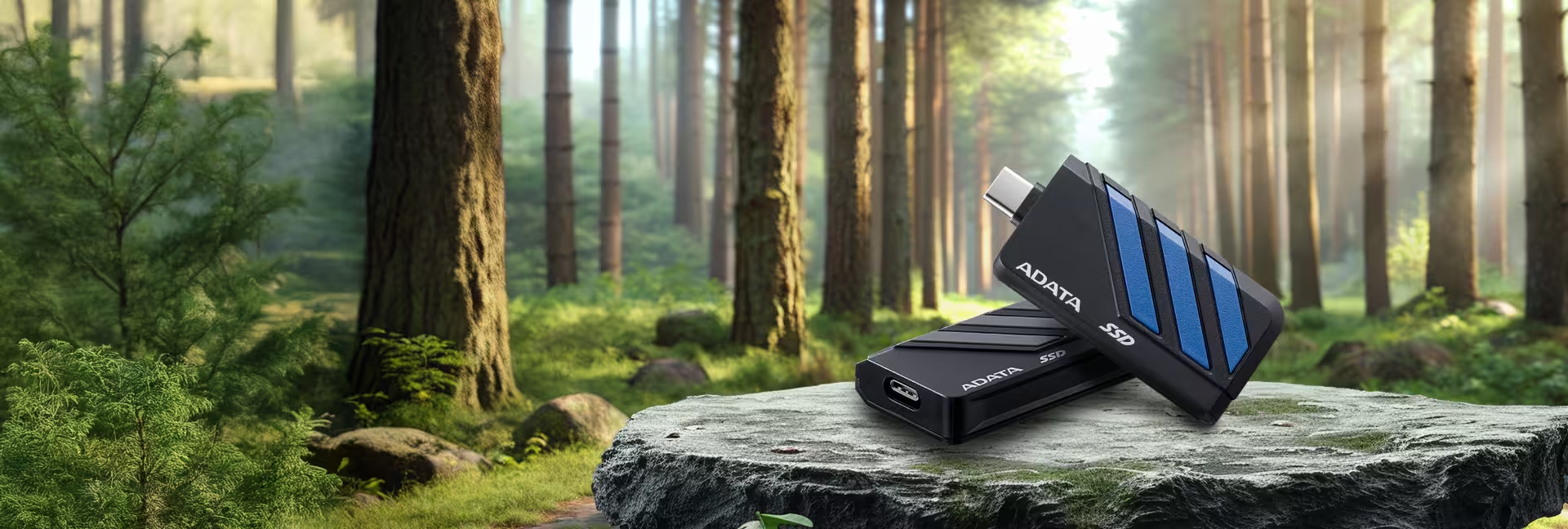
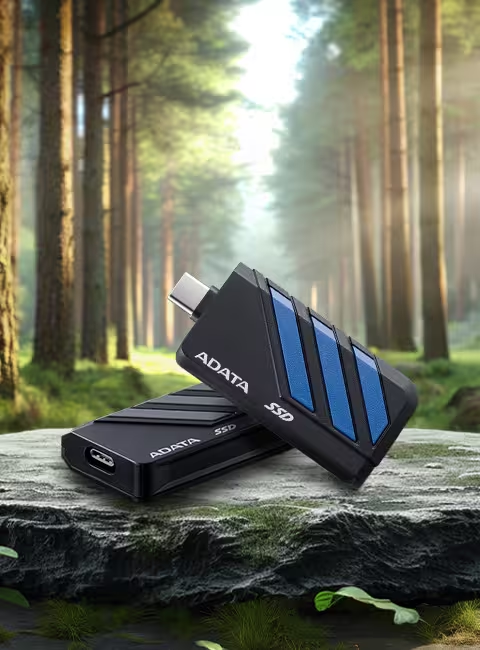
● 1,050/1,000 MB/s high-speed read/write
● Designed for mobile phones, lightweight and works without data cables
● Gaming handhelds compatible, best choice for transferring and storing games
● Supports latest generation game consoles
● Supports multiple operating systems
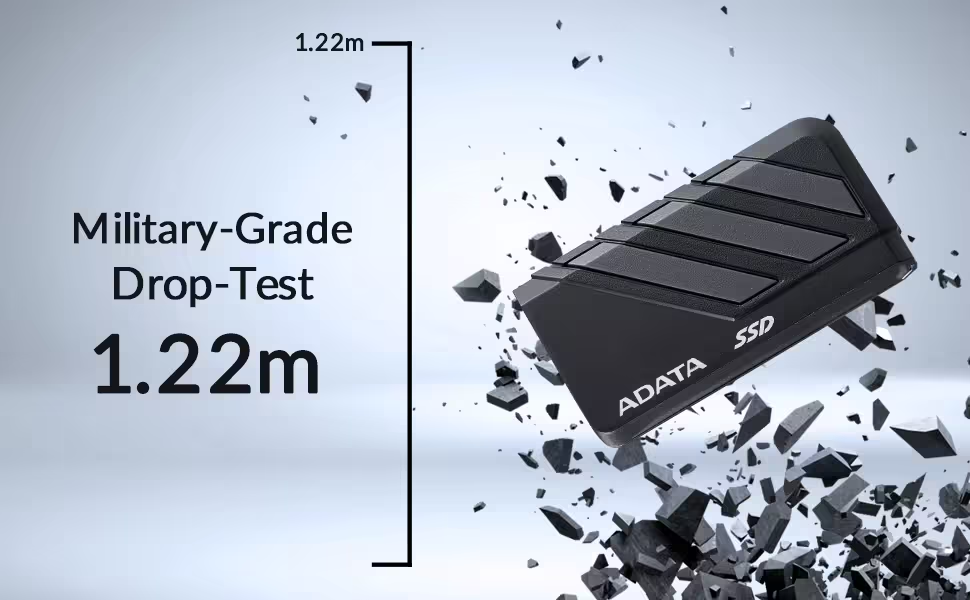
Military-Grade for All Your Challenges
SC735 also meets the MIL-STD-810G 516.6 impact resistance standard to easily survive 1.22-meter accidental drops and jarring. This protection shields your files, giving you peace of mind when transferring files while frequenting the outdoors.
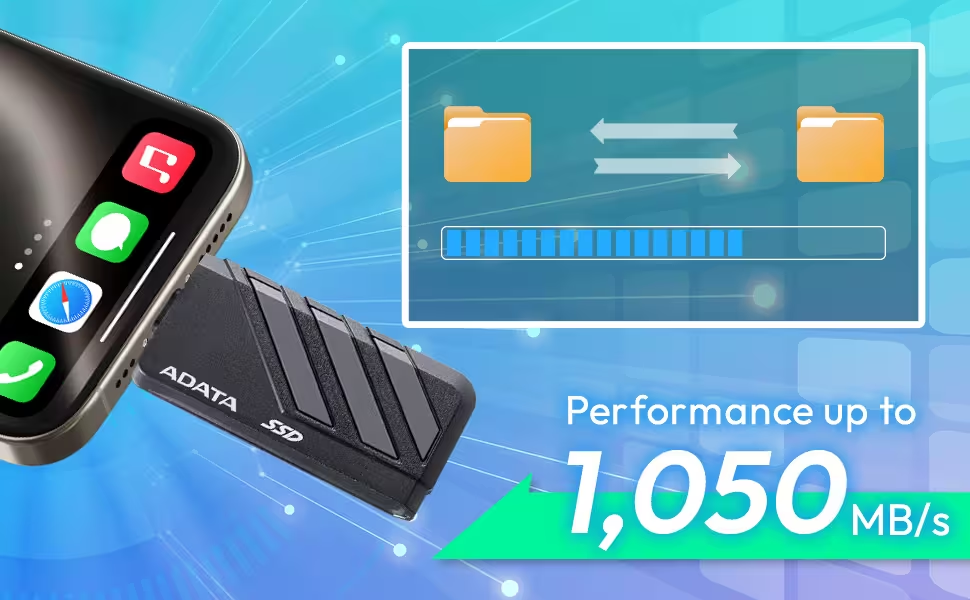
1,050/1,000MB/s High-speed Read/Write
The SC735 utilizes the USB 3.2 Gen2 interface to deliver high-speed performance with read/write speeds up to 1,050/1,000MB/s. This enables direct access and editing of large files on the drive itself. It also fully supports the iPhone 15 Pro series and later, facilitating both standard file transfers and direct Apple ProRes video recording.
* For optimal performance, devices must support USB 3.2 Gen 2 and UASP drivers. Actual speeds may vary depending on system hardware and software configurations.
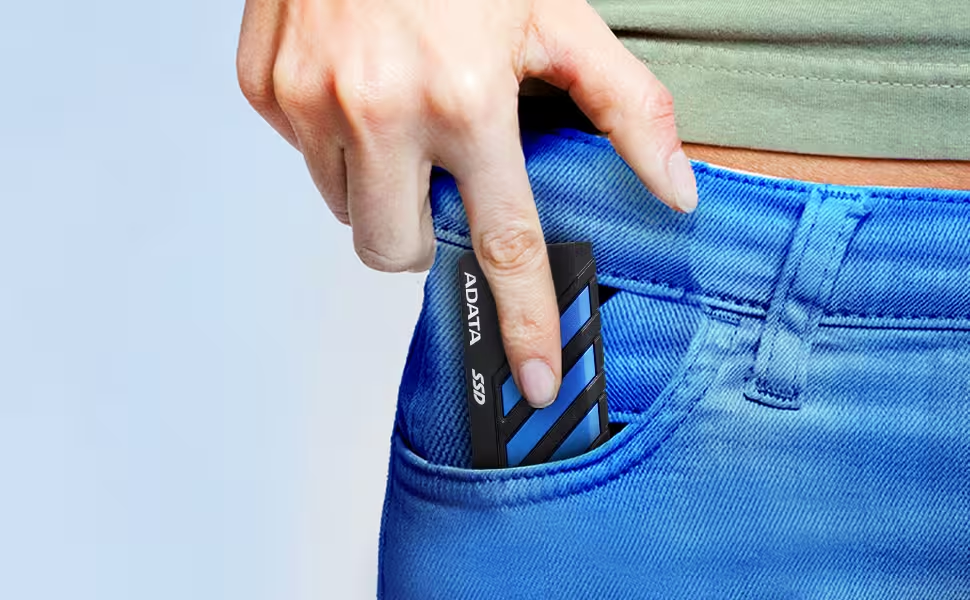
Featherweight Design, Unburdened Portability
The SC735 pushes lightweight design to its absolute limit, weighing a mere 13.6 grams—so light you will barely notice its presence. Its exceptionally compact body allows for effortless storage in a pocket or wallet. This achieves true portability that follows you anywhere, perfectly meeting the demands of mobile work and daily life.
Compact Size, Cableless Transfer
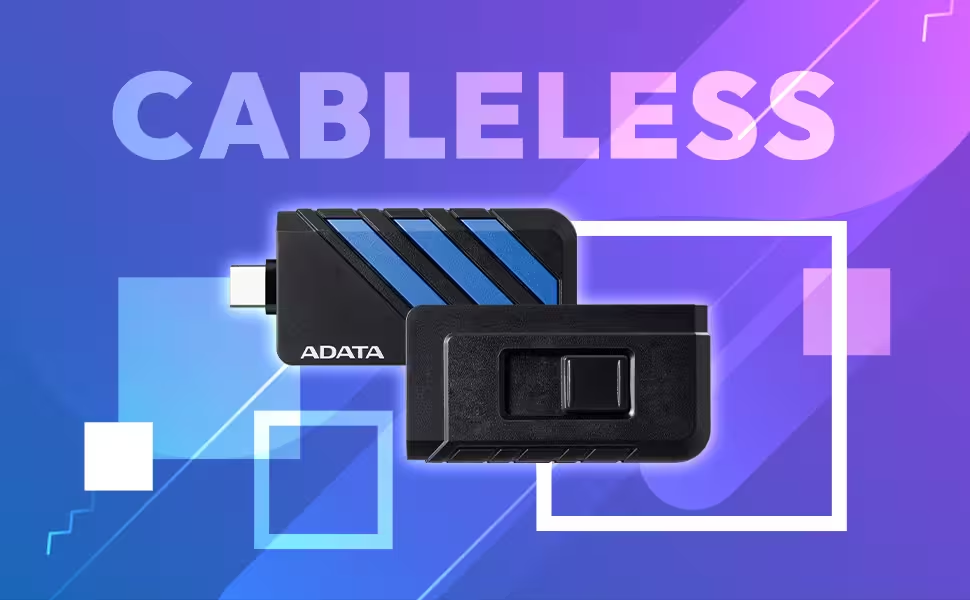
Featuring a retractable USB Type-C connector, the SC735 eliminates the need for external cables. Its compact and lightweight design, comparable in size to a standard flash drive, makes it exceptionally portable for work and travel. Simply extend the connector to begin transferring large files.
Your Game Library
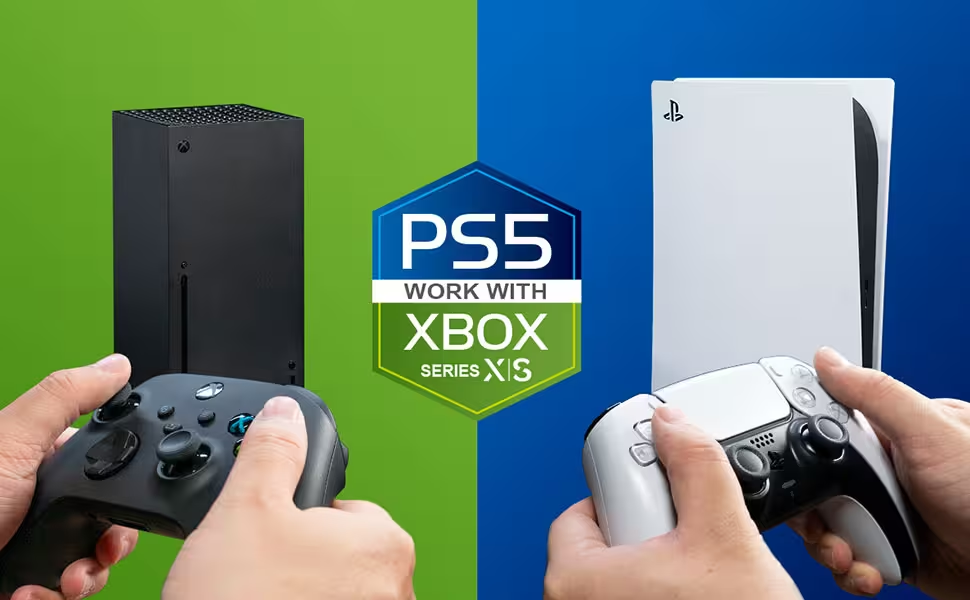
The SC735 can be connected to the latest generation of game consoles. Games that do not fit on the consoles' internal storage can be stored in the SC735, making it easy to expand your game library and add to your entertainment lifestyle.
Hassle-Free Compatibility
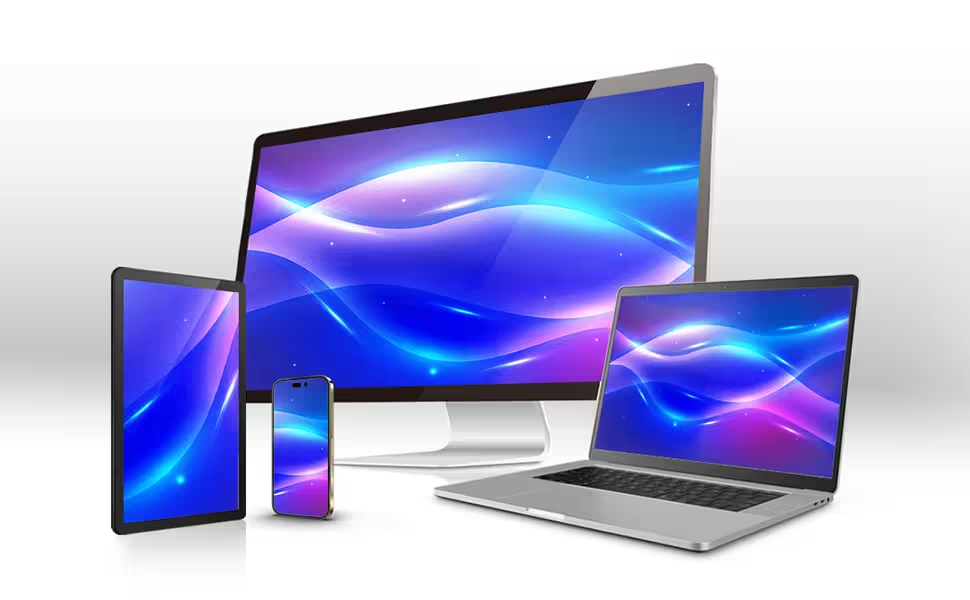
Whether Android, macOS, Windows, or other operating systems, you will not need to worry about compatibility. Just connect via its Type-C port and go.
*Mobile device software and hardware must be compatible with and support external SSDs in order to utilize OTG data backup and transfer functionality.
**When connecting a mobile device, ensure the mobile device supplies sufficient power to avoid transfer failure or data loss due to power issues.
*** Supported platforms: Please click here to learn more.
| Color | Blue / Grey |
|---|---|
| Capacity | 1000GB, 2000GB |
| Weight | 13.6g / 0.48oz |
| Interface | USB 3.2 Gen2 (USB 10Gbps) ( backward compatible with USB 2.0 ) |
| Sequential Read (Max*) | Up to 1,050 MB/s |
| Sequential Write (Max) | Up to 1,000 MB/s |
| Operating system requirements | Windows 8 / 8.1/ 10 / 11 MacOS 10.6 or later (informatting required for use) Linux Kernel 2.6 or later Android 13 or later |
| Op. Temperature | 5°C (41°F) to 50°C (122°F) |
| Op. Voltage | DC 5V, 900mA |
| Accessories | N/A |
| Dimensions ( L x W x H ) | 55 x 28.5 x 12.1 mm / 2.16 x 1.12 x 0.48 inch |
| Warranty | 5-year limited warranty |
| Remark | 1. Some of the listed capacity on a flash storage device is used for formatting and other functions and is not available for data storage. Actual available capacity is smaller than that listed on products. 2. As specified in the latest official announcement from the USB Association, the official name of USB 3.2 Gen2 is USB 10Gbps. Please check the announcement at www.usb.org. 3. Performance may vary by hardware configuration and software application. |
- A:
New external SSDs need to be formatted in order for the system to read and write data. The NTFS file system is recommended for Windows system. However, the EXFAT file system is recommended for SE880 external SSD.
- A: Make sure the external SSD is securely connected to a USB port. Detection failure may be related to a faulty USB port. If possible, try connecting the external SSD to another USB port. If detection issues persist, please contact ADATA customer service.
- A: 1. Connect the drive to your Windows PC
2. Open the Disk Management tool. You can do that by typing "disk format" or "disk management" in Windows search or going to Control Panel > Administrative Tools > Create and format hard disk partitions
3. Right-click on the external drive partition or the unallocated space you want to format and choose New Simple Volume
4. Follow instructions to choose a volume size
5. Assign a drive letter
6. Choose the file system in the Format Partition screen
7. Give the volume a new name
8. Click Next
9. Click Finish
10. Formatting complete - A: Please click here for more information.
Download here: https://www.adata.com/us/support/downloads/
Read Manuel: https://webapi3.adata.com/storage/support/software_backuptogo/en/backup_togo_manual_en.html
Demonstration Video: https://www.youtube.com/watch?v=CzkjFJzu7nA - A: If the external SSD loses power or is unplugged in an unsecure manner, Windows may prevent files from being copied to it. This is a Windows protective measure associated with the file system and does not mean the external SSD has a technical issue. You can try resolving this using the following steps:
- Click the “Scan and Fix” notification that appears when you connect the external SSD to your PC
- If you closed the notification, right-click on the external SSD icon in the system tray (notification area) and use the “Run CHKDSK” command
- If the external SSD icon isn’t displayed in the system tray, open Explorer and select the external SSD, then right-click, Properties, Tools, Check - A: We recommend that you use the Safely Remove Device function before disconnecting the cable between the external SSD and your Android device. Failing to do this may cause copied files to become corrupted and unreadable.
- A: Most new TVs support photo, music, and video playback from external storage via USB. However, not all TVs support this function and file system compatibility may vary. When connecting the external SSD to a TV, please check the following:
- After connecting the external SSD to the TV USB port, check if the external SSD is recognized in the TV menu
- If it isn’t recognized, please refer to the TV user manual or contact the manufacturer to check for USB support
- If it is recognized, check that you can play videos and music and view photos stored on the external SSD without any issues
- In case content can’t be accessed, verify which file systems are supported by your TV for external storage. The external SSD is formatted using the NTFS file system by default
- Follow any prompts from your TV operating system relating to the external SSD formatting. Modern TVs will auto-format external storage to a supported file system
■Important: formatting will delete all data. Please backup your data before proceeding If the file system is supported but you still can’t access content, verify the file types and extensions supported by the TV. - A: The actual drive capacity displayed on your device will vary from external SSD physical capacity due to mandatory operating system formatting and partitioning. Typically, operating systems remove 10-20% of drive physical capacity. This means a 250GB external SSD will have around 232GB free once it is fully formatted and detected by a supported operating system
- A: Differences in size shown are mainly due to differences in computer operating systems, the calculation method for an external hard drive capacity, and the Controller IC’s operations result in different ways. Generally, hard disk manufacturers usually calculate capacity based on the decimal system, and computer systems are actually binary. Hard drive manufacturer: 1KB = 1000 Bytes, 1MB = 1000KB, 1GB = 1000MB, 1TB = 1000GB
Operating system: 1KB = 1024 Bytes, 1MB = 1024KB, 1GB = 1024MB, 1TB = 1024GB
So for example, a hard disk marked as 500GB capacity is 500GB = 500 x 1,000MB x 1,000KB x 1,000Bytes = 500,000,000,000 Bytes, but in binary the capacity is calculated as 500,000,000,000 Bytes / 1024KB / 1024MB / 1024GB, approximately 465GB.
Fastest method of calculation: the hard disk capacity x 0.93 = the approximate actual hard disk capacity - A: UASP stands for USB Attached SCSI Protocol. It combines SCSI commands and USB standards to accelerate data movement and make file transfers more efficient. If your device does not support UASP, you may update it from the device manufacturer website, as UASP functionality can be added via firmware or operating system update.
- A:
Backup ToGo does not support an encryption function. Use of built-in Windows encryption software BitLocker is recommended (click here to enable BitLocker encryption mechanism on Windows 10 devices).