

 A+ Member


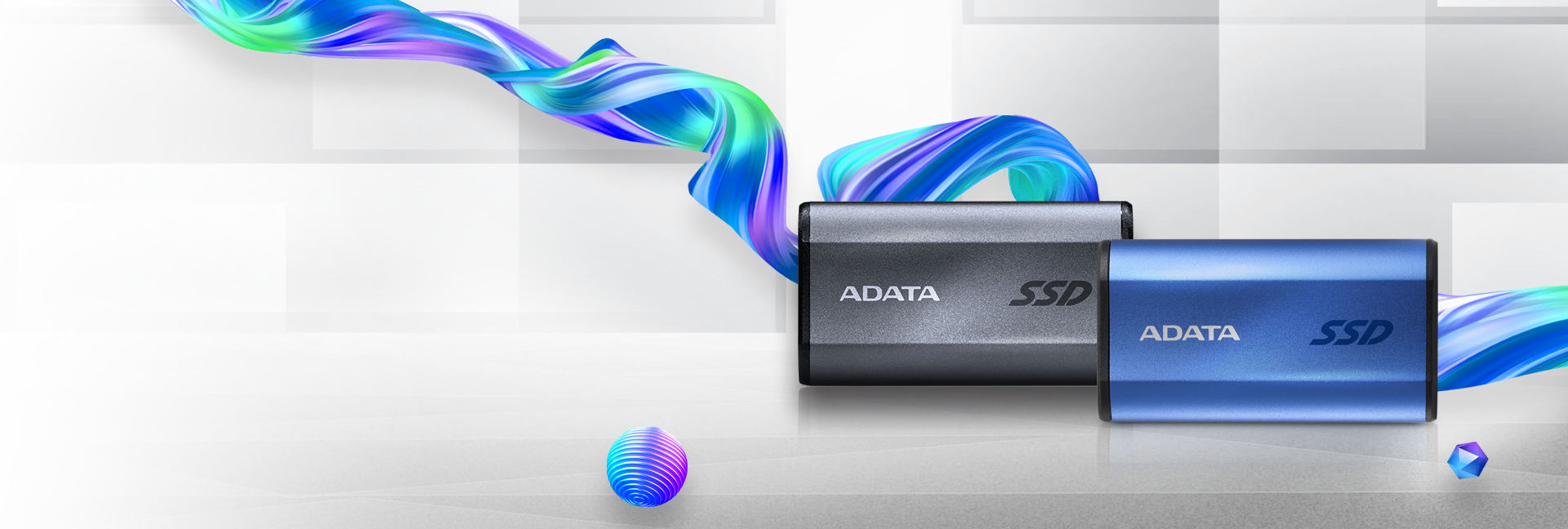
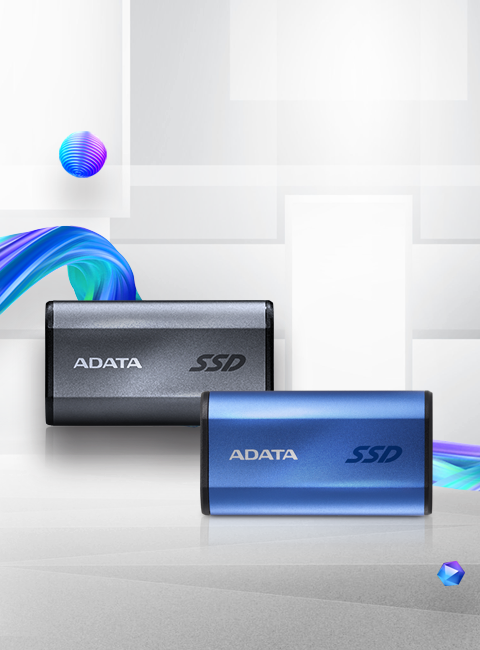

● Supports USB 3.2 Gen2 x2
● Performance up to 2000MB/s
● Highly portable, lightweight, and compact form factor
● Supports new generation game consoles
● Supports multiple operating systems support
Speed Ahead with USB 3.2 Gen2 x2
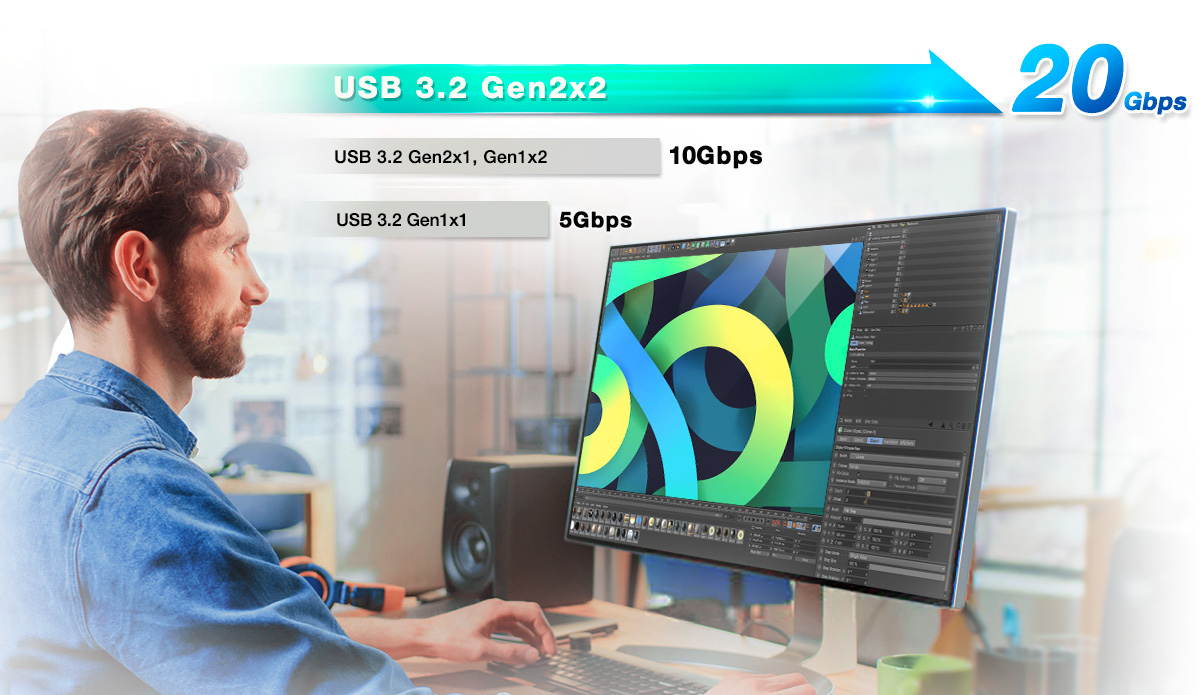
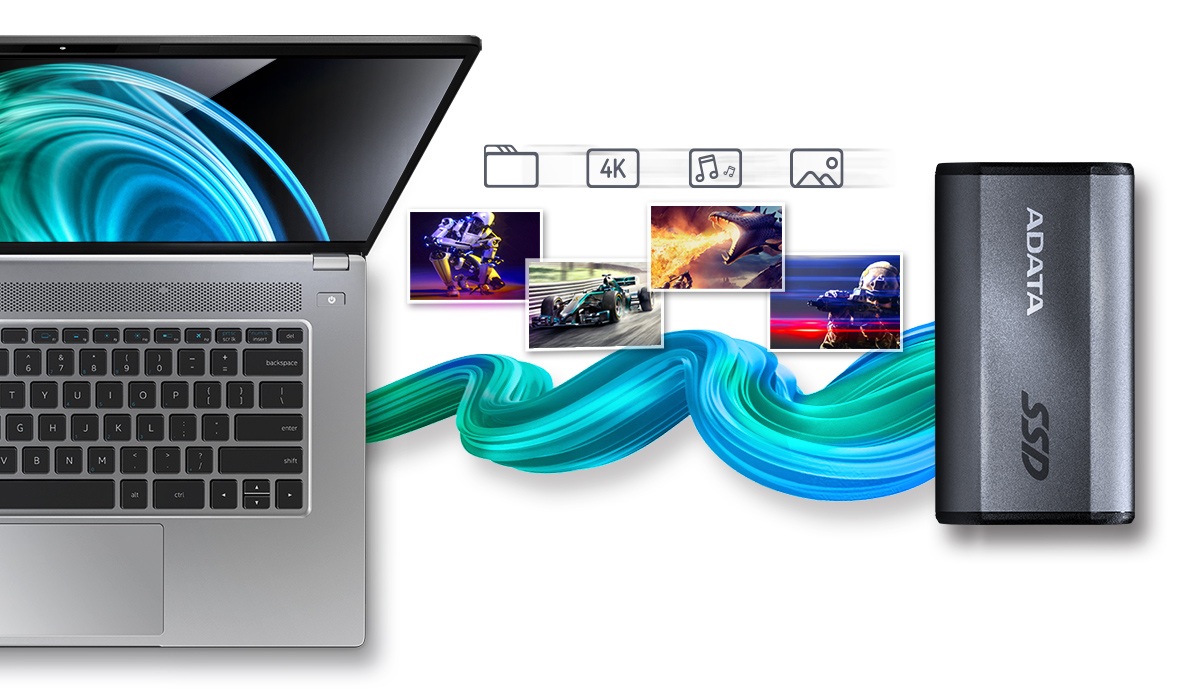
The SE880 supports USB 3.2 Gen2 x2, capable of reaching transmission speeds of 20Gb/s. This is twice as fast as USB 3.2 Gen 2x1 and 4 times faster than USB 3.2 Gen 1x1.
* For optimal performance, the host device must support USB 3.2 Gen 2 and UASP drivers. Actual performance will vary depending on the host device's hardware and software configurations.
Fast Speeds of up to 2000 MB/s
The SE880 is capable of reaching read/write speeds of up to 2000MB/s, which is roughly 20 times faster than ordinary external hard drives, which only reach about 100MB/s. This allows you to directly perform intensive task right on the SE880, whether is A/V editing or other applications.
*This is an internal test result based on a comparison with ADATA external HDDs. The PCs used in the test support USB 3.2 Gen 2 and have a UASP driver installed. Actual speeds may vary depending on host device's hardware and software configurations.
Made for On the Go
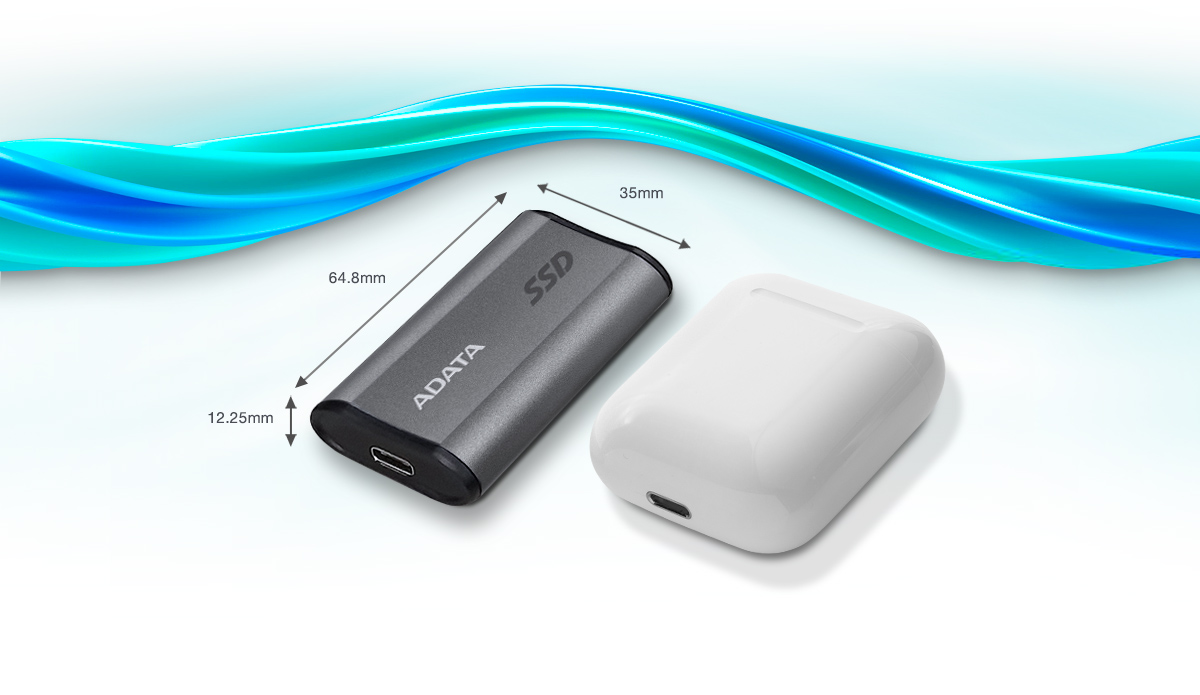
The compact and lightweight SE880 can be easily held in the palm of the hand or placed into bags or packets for unrivalled portability.
Your Game Library
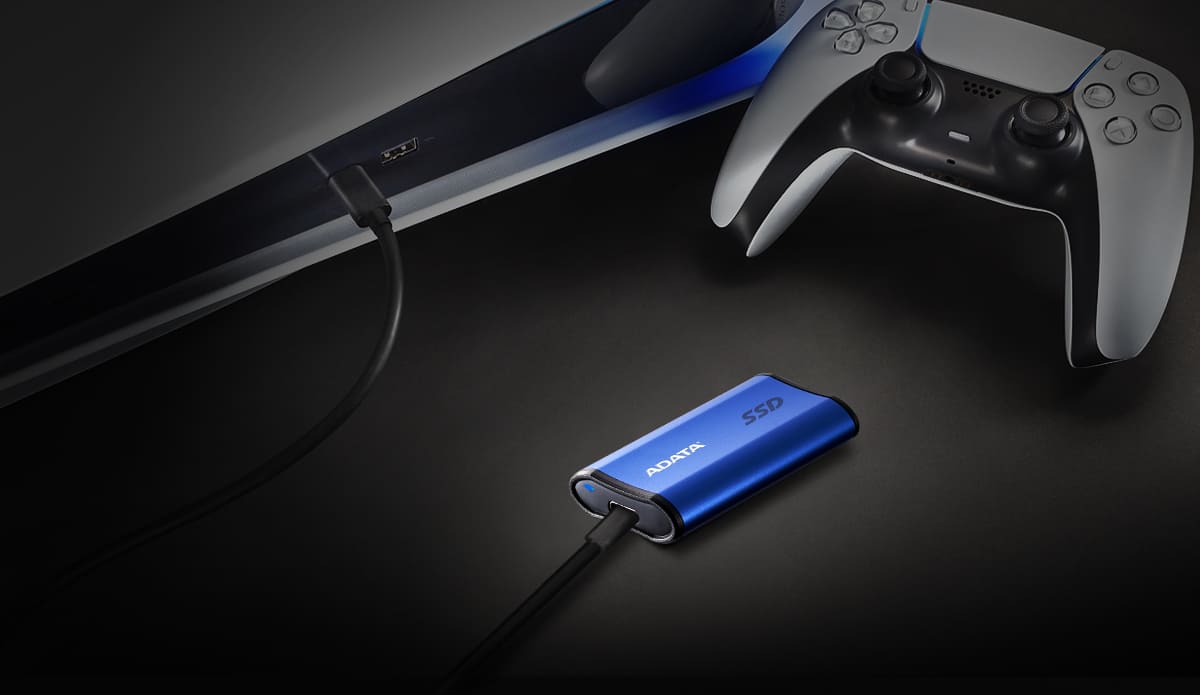
Supporting many of the latest game consoles, the SE880 is ideal for storing all your games without out taking up too much physical space.
*Formatting may be required before connecting to your game console. For more information, click here.
Expand your iPhone 15’s storage
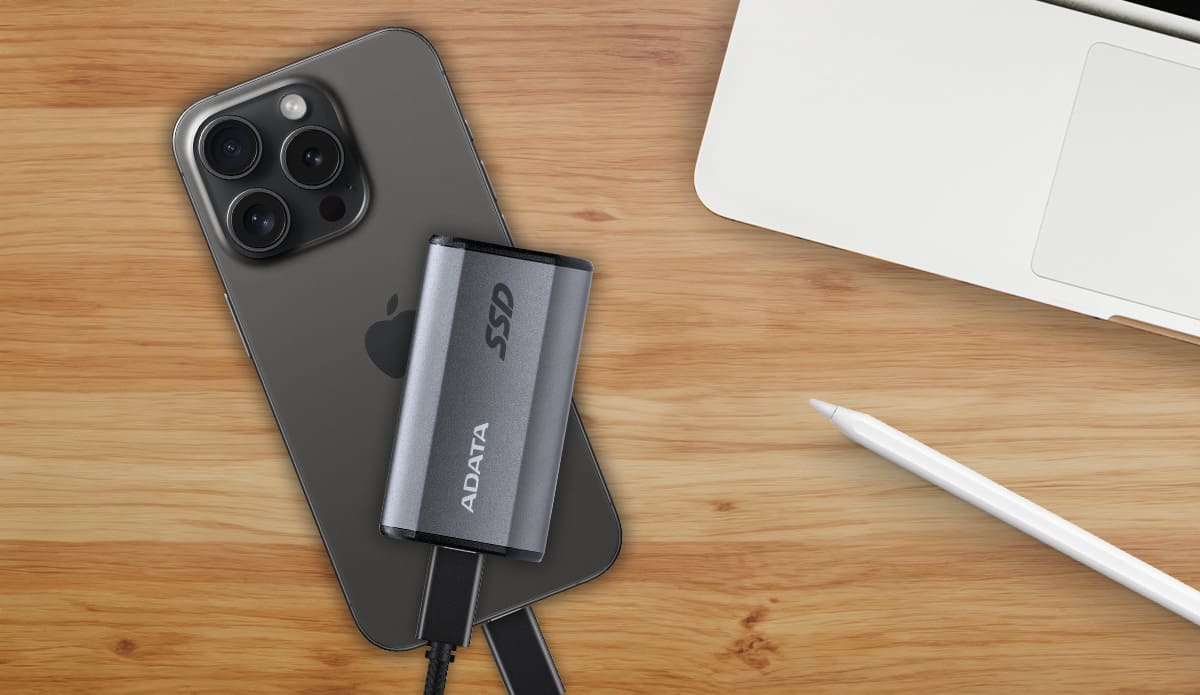
The SE880's type-C connection supports the iPhone 15 series smartphones, so you no longer have to worry about capacity limitations. Connect for instant storage, fast backup, and file sharing regardless of location or network restrictions.
Hassle-Free Compatibility
Whether Android, macOS, Windows, or other operating systems, you won’t need to fret about compatibility. Just connect via its Type-C port and go.
*The software and hardware of mobile devices must support external solid-state hard drives to enjoy OTG data backup and transmission functions.
** Supported platforms: Please click here to learn more.
| Color | Titanium Gray / Blue |
|---|---|
| Capacity | 500GB / 1TB / 2TB / 4TB |
| Weight | 31g / 1.1oz |
| Interface | USB 3.2 Gen2 x2 Type-C (USB 20Gbps) |
| Sequential Read (Max*) | Up to 2000 MB/s |
| Sequential Write (Max) | Up to 2000 MB/s |
| Operating system requirements | Windows 8 / 8.1 / 10 / 11 Mac OS X 10.6 or later Linux Kernel 2.6 or later Android 8.0 or later |
| Op. Temperature | 5°C(41°F) - 50°C (122°F) |
| Op. Voltage | DC 5V, 900mA |
| Accessories | USB Type-C to C cable,USB Type-C to A cable, Quick Start Guide |
| Dimensions ( L x W x H ) | 64.8 x 35 x 12.25mm / 2.55 x 1.38 x 0.48inch |
| Warranty | 5-year limited warranty |
| Remark |
|
- A: Please click here for more information.
- A: In Windows XP, you can partition disks through Control Panel / administrative tools / computer management / disk management. Select the installed hard disk, and press the right mouse button, and select the option to partition the drive.
- A:
New external SSDs need to be formatted in order for the system to read and write data. The NTFS file system is recommended for Windows system. However, the EXFAT file system is recommended for SE880 external SSD.
- A: There may be compatibility issues with certain security programs for mobile devices that are completely unrelated to the external SSD. Most Android device manufacturers themselves do not guarantee compatibility with such apps. If the OS of your mobile device freezes, reboot the mobile device. If this fails, please contact the device manufacturer.
- A: Make sure the external SSD is securely connected to a USB port. Detection failure may be related to a faulty USB port. If possible, try connecting the external SSD to another USB port. If detection issues persist, please contact ADATA customer service.
- A: While most USB devices such as external hard drives, external SSDs, and Flash drives can be plugged and unplugged at will, do avoid doing so when they are active. If you unplug a storage device or a removable drive from your computer while it’s transferring or saving information, you risk data loss or corruption. If in doubt, use the Windows “Safely Remove Hardware” feature, which stops drive operations and then ends the connection between it and the host computer safely.
- A: 1. Connect the drive to your Windows PC
2. Open the Disk Management tool. You can do that by typing "disk format" or "disk management" in Windows search or going to Control Panel > Administrative Tools > Create and format hard disk partitions
3. Right-click on the external drive partition or the unallocated space you want to format and choose New Simple Volume
4. Follow instructions to choose a volume size
5. Assign a drive letter
6. Choose the file system in the Format Partition screen
7. Give the volume a new name
8. Click Next
9. Click Finish
10. Formatting complete - A: If data transfer is interrupted, make sure that the error was not caused by a lack of power. If a transmission interruption occurs, please reconnect the device and retry the data transmission. In theory, data will not disappear because of interruptions in the transfer process.
- A: Please click here for more information.
Download here: https://www.adata.com/us/support/downloads/
Read Manuel: https://webapi3.adata.com/storage/support/software_backuptogo/en/backup_togo_manual_en.html
Demonstration Video: https://www.youtube.com/watch?v=CzkjFJzu7nA - A: If the external SSD loses power or is unplugged in an unsecure manner, Windows may prevent files from being copied to it. This is a Windows protective measure associated with the file system and does not mean the external SSD has a technical issue. You can try resolving this using the following steps:
- Click the “Scan and Fix” notification that appears when you connect the external SSD to your PC
- If you closed the notification, right-click on the external SSD icon in the system tray (notification area) and use the “Run CHKDSK” command
- If the external SSD icon isn’t displayed in the system tray, open Explorer and select the external SSD, then right-click, Properties, Tools, Check - A: We recommend that you use the Safely Remove Device function before disconnecting the cable between the external SSD and your Android device. Failing to do this may cause copied files to become corrupted and unreadable.
- A: Most new TVs support photo, music, and video playback from external storage via USB. However, not all TVs support this function and file system compatibility may vary. When connecting the external SSD to a TV, please check the following:
- After connecting the external SSD to the TV USB port, check if the external SSD is recognized in the TV menu
- If it isn’t recognized, please refer to the TV user manual or contact the manufacturer to check for USB support
- If it is recognized, check that you can play videos and music and view photos stored on the external SSD without any issues
- In case content can’t be accessed, verify which file systems are supported by your TV for external storage. The external SSD is formatted using the NTFS file system by default
- Follow any prompts from your TV operating system relating to the external SSD formatting. Modern TVs will auto-format external storage to a supported file system
■Important: formatting will delete all data. Please backup your data before proceeding If the file system is supported but you still can’t access content, verify the file types and extensions supported by the TV. - A: The external hard drive requires a start-up current of over 600 milliamps, however USB 2.0 can only provide a maximum of 500 milliamps. As a result, it is recommended that you use a Y-cable we using with a USB 2.0 host devices.
- A: The actual drive capacity displayed on your device will vary from external SSD physical capacity due to mandatory operating system formatting and partitioning. Typically, operating systems remove 10-20% of drive physical capacity. This means a 250GB external SSD will have around 232GB free once it is fully formatted and detected by a supported operating system
- A: Differences in size shown are mainly due to differences in computer operating systems, the calculation method for an external hard drive capacity, and the Controller IC’s operations result in different ways. Generally, hard disk manufacturers usually calculate capacity based on the decimal system, and computer systems are actually binary. Hard drive manufacturer: 1KB = 1000 Bytes, 1MB = 1000KB, 1GB = 1000MB, 1TB = 1000GB
Operating system: 1KB = 1024 Bytes, 1MB = 1024KB, 1GB = 1024MB, 1TB = 1024GB
So for example, a hard disk marked as 500GB capacity is 500GB = 500 x 1,000MB x 1,000KB x 1,000Bytes = 500,000,000,000 Bytes, but in binary the capacity is calculated as 500,000,000,000 Bytes / 1024KB / 1024MB / 1024GB, approximately 465GB.
Fastest method of calculation: the hard disk capacity x 0.93 = the approximate actual hard disk capacity - A: UASP stands for USB Attached SCSI Protocol. It combines SCSI commands and USB standards to accelerate data movement and make file transfers more efficient. If your device does not support UASP, you may update it from the device manufacturer website, as UASP functionality can be added via firmware or operating system update.
- A: Solid State Drives (SSD) are storage devices like hard drives, but with much better performance, especially as regards random access speeds. But because of their higher price, they are often more suitable to be used as the drive from which the operating system is run. The slower speeds of HDDs mean they are likely to be used as data backup media, and for data archives.
- A:
Backup ToGo does not support an encryption function. Use of built-in Windows encryption software BitLocker is recommended (click here to enable BitLocker encryption mechanism on Windows 10 devices).