


 A+ Member


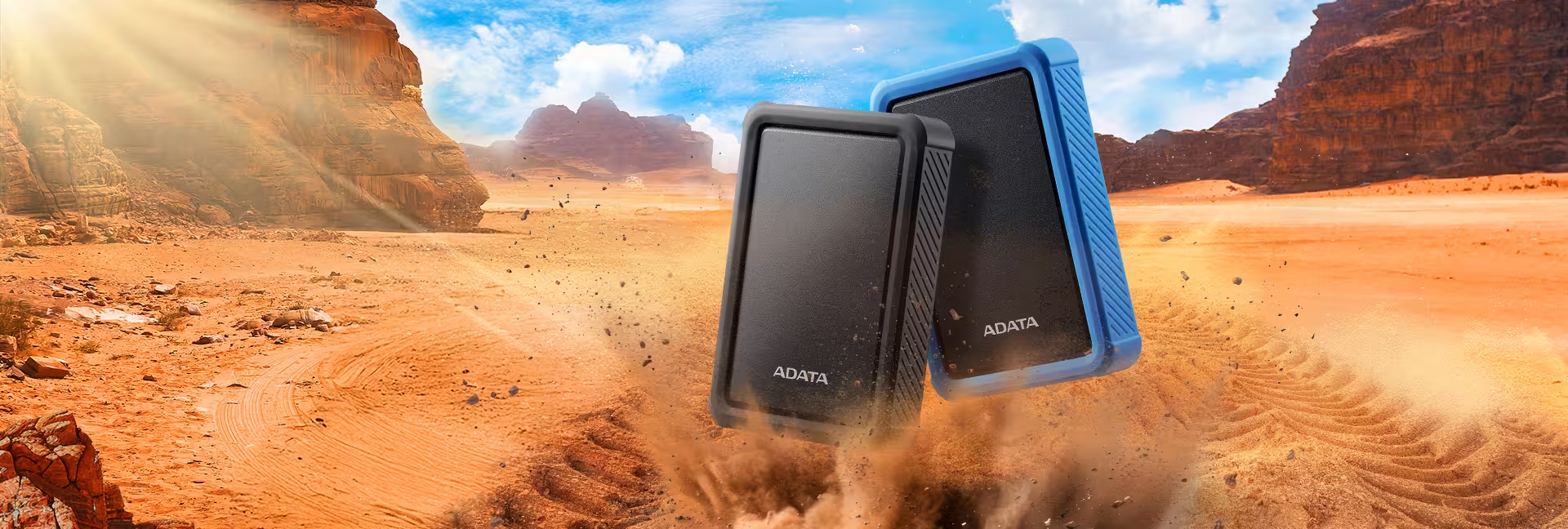
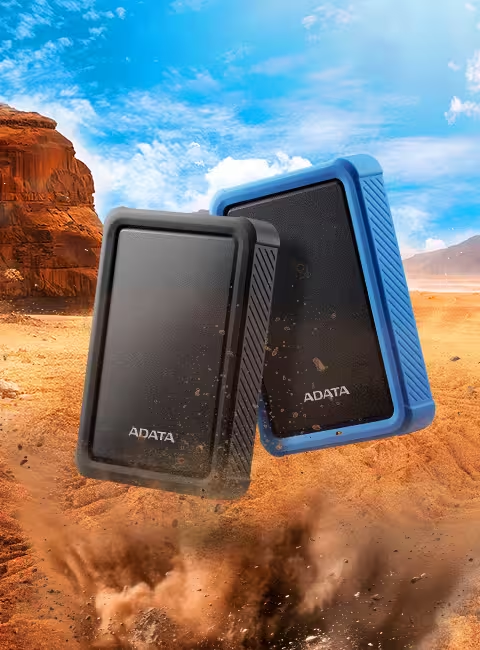
- 1.22m Military-Grade Shockproof Protection
- IP54 Water & Dust Resistance
- Up to 2TB Portable Storage
- High Compatibility for Game Console Expansion
- Backup ToGo Smart Backup Software
Splash It Off, Dust It Out
With IP54 defense, sudden spills and dust are no match. The HD700 Pro keeps your memories safe, anytime, anywhere.
*HD700 Pro dust and water proof ratings apply only when the USB port cover is firmly closed.

Armor for Your Data
Survives 1.22m drops with military-grade toughness (MIL-STD-810G 516.6). Silicone shock protection keeps your files safe from every hit.

Space That Moves With You
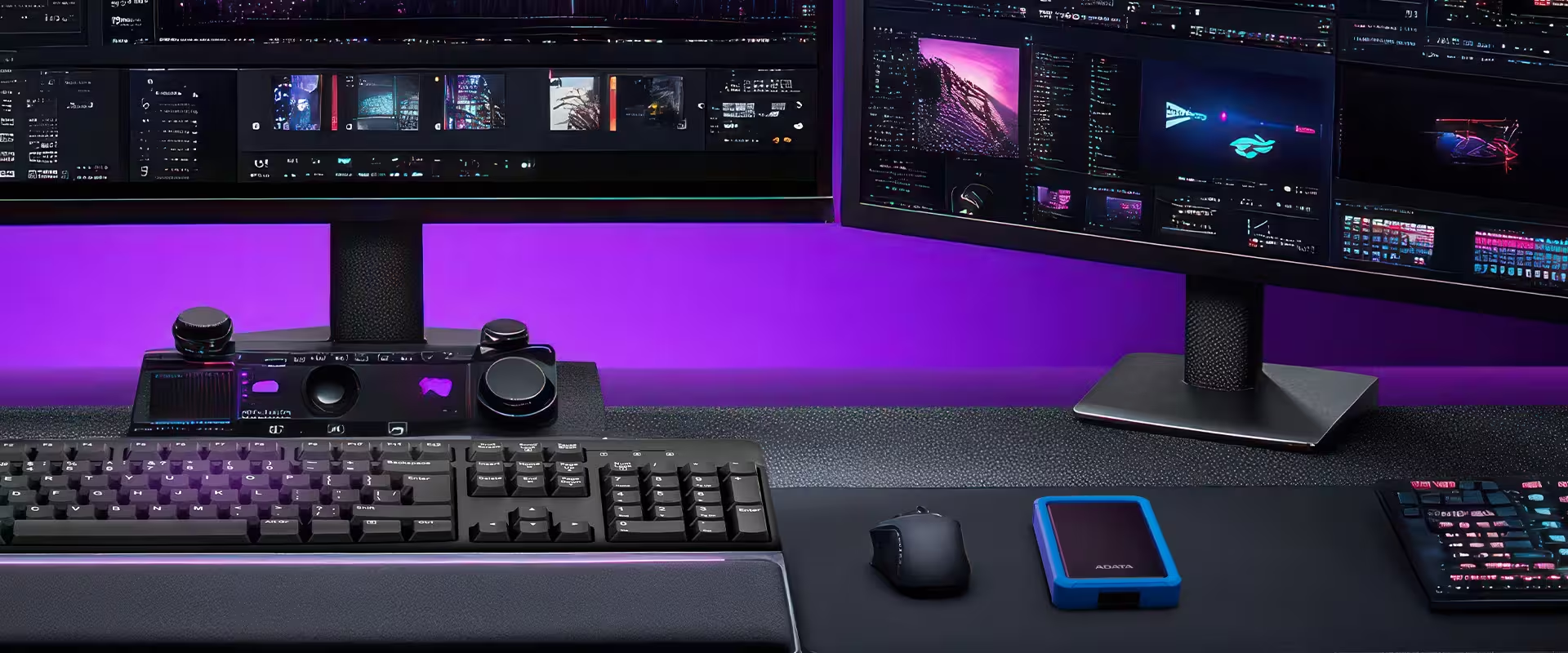
Up to 2TB with USB 3.2 Gen 1—room for AI projects, renders, and edits. Your ultimate portable vault on the go.
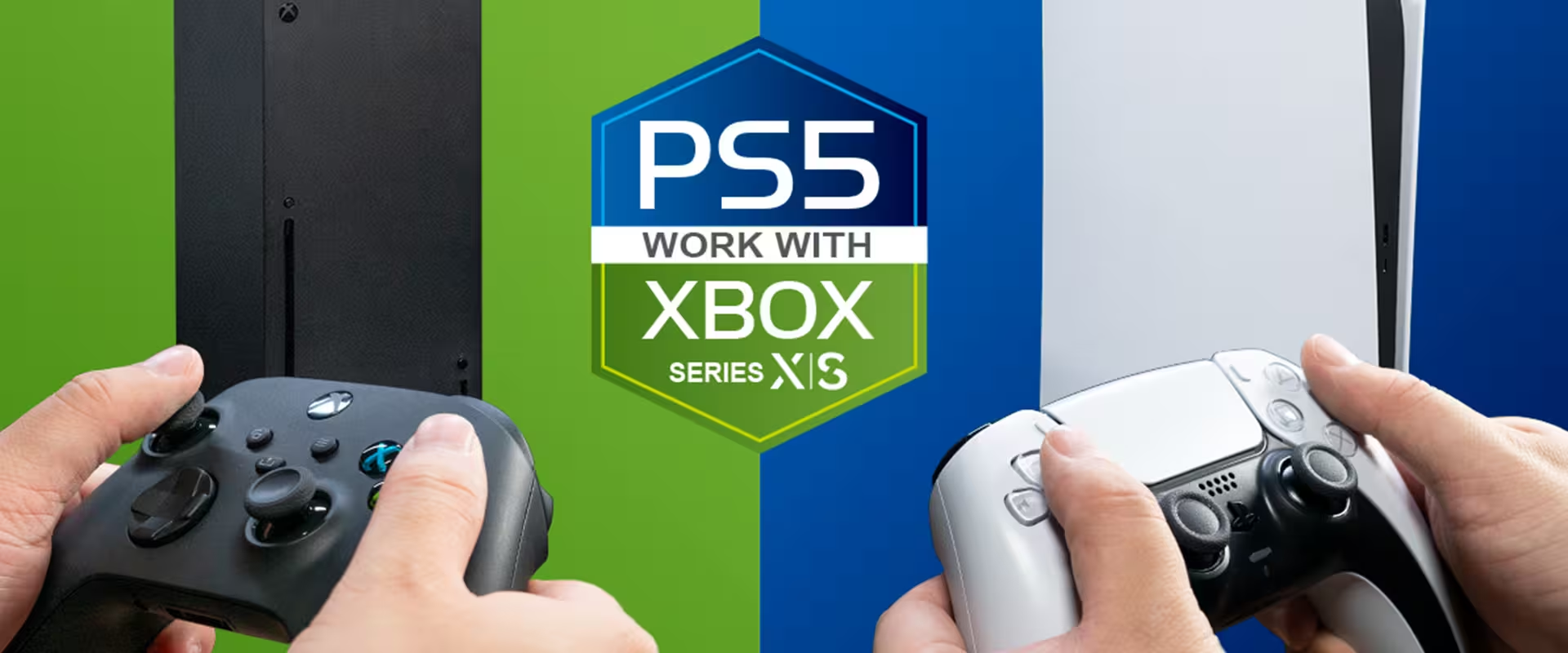
Use it with Your Game Console
The HD700 Pro can be connected to game consoles and be used as backup storage for games that are not currently being played.
*Actual loading times may vary depending on the game. Reformatting may be required for the external HDD to work with game consoles.
** Support for external storage devices varies by game console. Please click here to learn more.
Backup ToGo Smart Backup Software
Backup ToGo uses an algorithm to back all your data intelligently and with ease. Set your desired backup schedules and never worry about data loss again! What's more, Backup ToGo features a cloud backup function, which supports backup onto the cloud, local hard drives, and even on mobile devices. With Backup ToGo, users can enjoy a tool with an intuitive interface that makes data backup a snap!
| Capacity | 1TB / 2TB |
|---|---|
| Color | Black / Blue |
| Dimensions | 127.3 x 90.5 x 22mm / 5.01 x 3.56 x 0.86inch |
| Weight | 210g / 7.4oz |
| Interface | USB 3.2 Gen 1 (USB 5Gbps) (backward compatible with USB 2.0) |
| Texture | Plastic, Silicone |
| Operating Temperature | 5°C(41°F) - 50°C (122°F) |
| Operating Voltage | DC 5V , 900mA |
| System requirements | Windows 7 / 8 / 8.1 / 10 / 11, Mac OS X 10.6 or later (reformatting required for use), Linux Kernel 2.6 or later |
| Accessories | USB 3.2 Gen1 cable ; quick start guide |
| Warranty | 3-year limited |
| Remark |
|
- A: Please click here for more information.
- A: In Windows XP, you can partition disks through Control Panel / administrative tools / computer management / disk management. Select the installed hard disk, and press the right mouse button, and select the option to partition the drive.
- A: There may be compatibility issues with certain security programs for mobile devices that are completely unrelated to the external SSD. Most Android device manufacturers themselves do not guarantee compatibility with such apps. If the OS of your mobile device freezes, reboot the mobile device. If this fails, please contact the device manufacturer.
- A:
1. Safely Remove: Please use the "Safely Remove Hardware" function before unplugging the hard drive to prevent data corruption.
2. Avoid Collisions and Drops: When in use, please place the hard drive on a stable surface to avoid vibrations or impacts that could damage it.
3. Prevent Overheating: Keep the hard drive well-ventilated during use and do not place it in high-temperature areas or direct sunlight.
4. Stable Power Supply: Prioritize using the USB ports on the computer's main unit and avoid using unpowered USB hubs.
5. Be Mindful of Viruses and Information Security: When using the hard drive between different computers, please use antivirus software and protect your personal data.
- A:
The reasons for an external hard drive producing unusual noises could be aging, abnormalities in the circuit board, or read/write tracks. It could also be caused by the read/write head module inside the hard drive being displaced due to impact.
If the hard drive emits metallic clicking sounds and experiences slow read speeds or computer crashes, it is recommended to immediately back up your data, unplug the hard drive's power cable, and send it for repair.
- A: 1. Connect the drive to your Windows PC
2. Open the Disk Management tool. You can do that by typing "disk format" or "disk management" in Windows search or going to Control Panel > Administrative Tools > Create and format hard disk partitions
3. Right-click on the external drive partition or the unallocated space you want to format and choose New Simple Volume
4. Follow instructions to choose a volume size
5. Assign a drive letter
6. Choose the file system in the Format Partition screen
7. Give the volume a new name
8. Click Next
9. Click Finish
10. Formatting complete - A: Please click here for more information.
Download here: https://www.adata.com/us/support/downloads/
Read Manuel: https://webapi3.adata.com/storage/support/software_backuptogo/en/backup_togo_manual_en.html
Demonstration Video: https://www.youtube.com/watch?v=CzkjFJzu7nA - A: If data transfer is interrupted, make sure that the error was not caused by a lack of power. If a transmission interruption occurs, please reconnect the device and retry the data transmission. In theory, data will not disappear because of interruptions in the transfer process.
- A: We recommend that you use the Safely Remove Device function before disconnecting the cable between the external SSD and your Android device. Failing to do this may cause copied files to become corrupted and unreadable.
- A: The external hard drive requires a start-up current of over 600 milliamps, however USB 2.0 can only provide a maximum of 500 milliamps. As a result, it is recommended that you use a Y-cable we using with a USB 2.0 host devices.
- A: Differences in size shown are mainly due to differences in computer operating systems, the calculation method for an external hard drive capacity, and the Controller IC’s operations result in different ways. Generally, hard disk manufacturers usually calculate capacity based on the decimal system, and computer systems are actually binary. Hard drive manufacturer: 1KB = 1000 Bytes, 1MB = 1000KB, 1GB = 1000MB, 1TB = 1000GB
Operating system: 1KB = 1024 Bytes, 1MB = 1024KB, 1GB = 1024MB, 1TB = 1024GB
So for example, a hard disk marked as 500GB capacity is 500GB = 500 x 1,000MB x 1,000KB x 1,000Bytes = 500,000,000,000 Bytes, but in binary the capacity is calculated as 500,000,000,000 Bytes / 1024KB / 1024MB / 1024GB, approximately 465GB.
Fastest method of calculation: the hard disk capacity x 0.93 = the approximate actual hard disk capacity - A: UASP stands for USB Attached SCSI Protocol. It combines SCSI commands and USB standards to accelerate data movement and make file transfers more efficient. If your device does not support UASP, you may update it from the device manufacturer website, as UASP functionality can be added via firmware or operating system update.
- A: Solid State Drives (SSD) are storage devices like hard drives, but with much better performance, especially as regards random access speeds. But because of their higher price, they are often more suitable to be used as the drive from which the operating system is run. The slower speeds of HDDs mean they are likely to be used as data backup media, and for data archives.
- A:
Backup ToGo does not support an encryption function. Use of built-in Windows encryption software BitLocker is recommended (click here to enable BitLocker encryption mechanism on Windows 10 devices).
- A: There are two general possibilities :
● Lack of power: The hard disk should be attached to the USB power cable connector into the USB slot on the back of the computer. Make sure your computer supplies enough power for the hard disk to run. Do not use a USB Hub, extension cord, or other USB devices together, because doing so may cause power undersupply, resulting in the external drive being unable to be read.
● Volume has not been added: In Windows XP/Vista/7 operating systems, go to Disk Management to confirm that the hard disk is installed.