

 A+ Member




- PCIe Gen4 x4
- ax. read/write speed: 7,400/6,800 MB/s
- Capacity: Up to 4TB
- Heatsink provides effective cooling
- Supports latest Intel and AMD platforms
- 5-years warranty
*Download SSD Toolbox to get the latest firmware for optimized performance and other value-added features
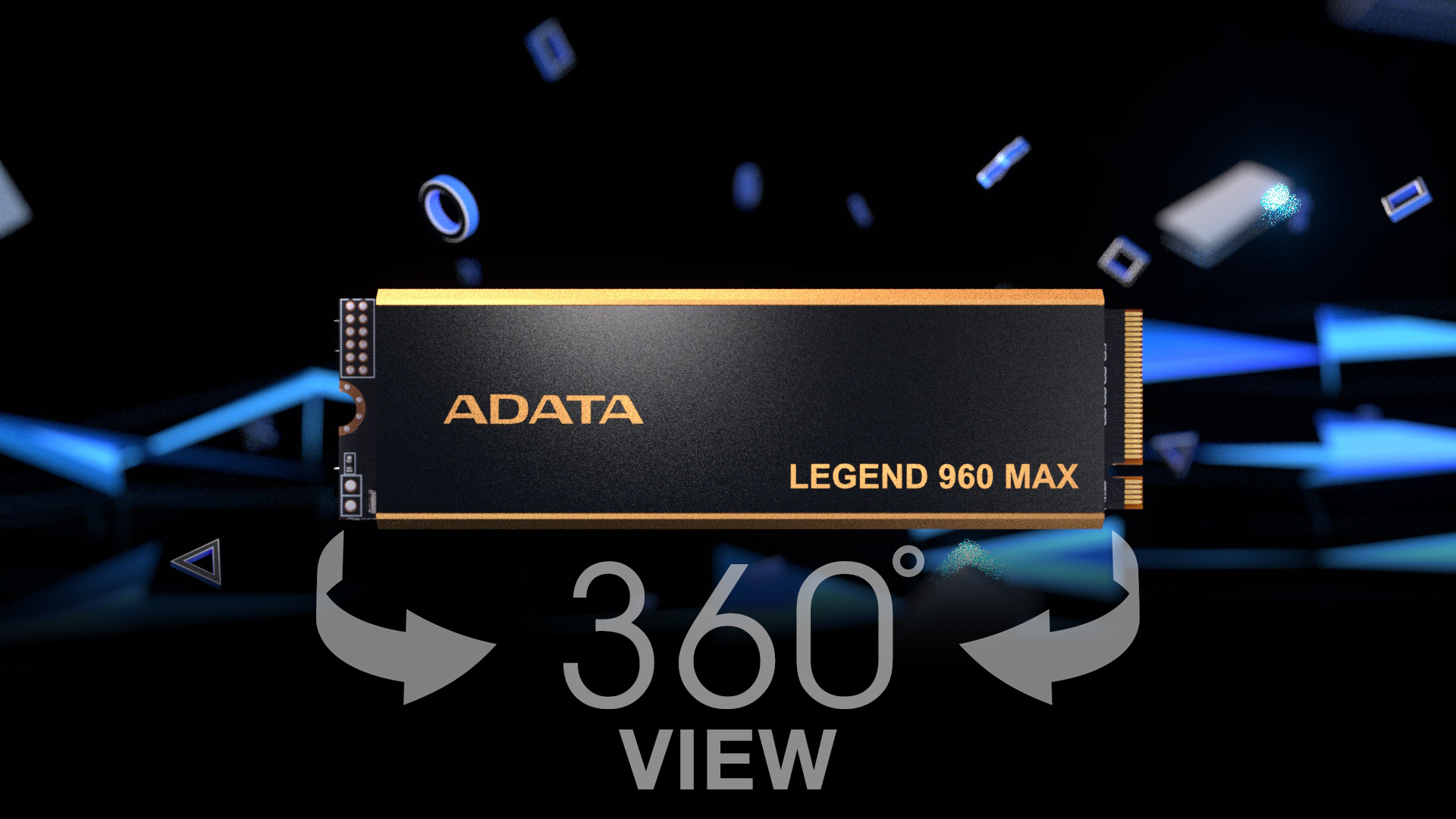
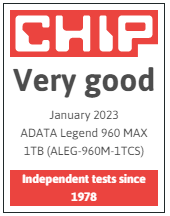
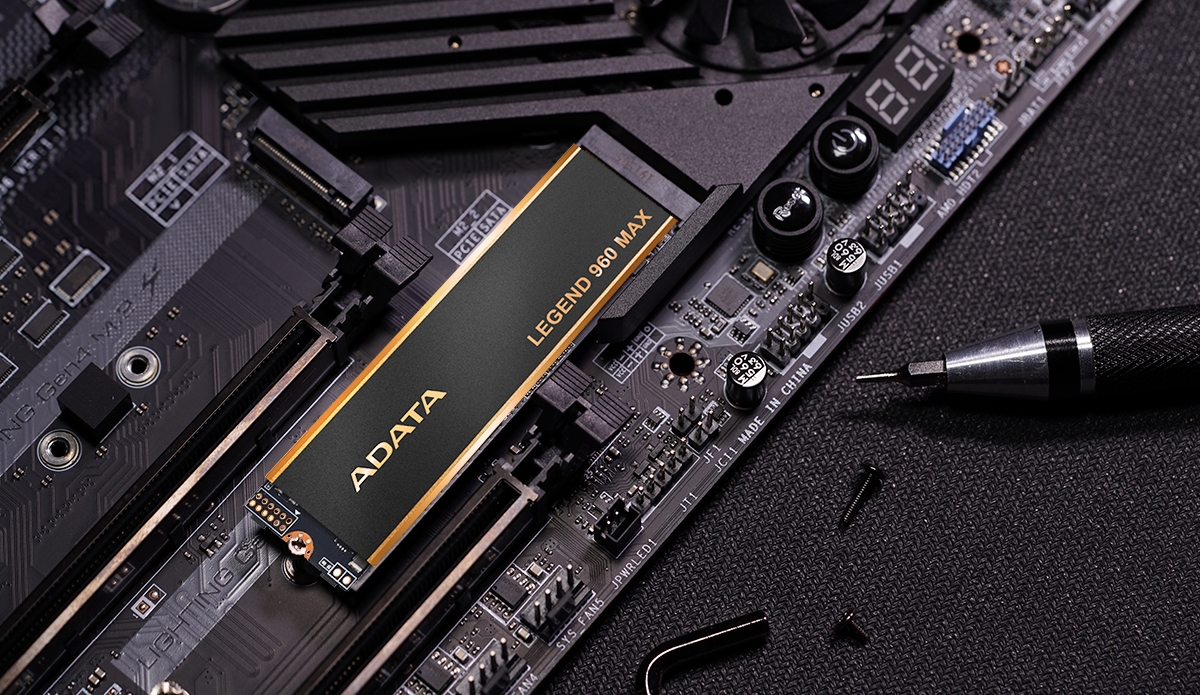
With a finned heat sink design and the latest PCIe 4.0, LEGEND 960 MAX offers you brilliant read and write speeds of 7,400/6,800 MB/s while maintaining stable performance. Moreover, LEGEND 960 MAX not only provides capacities of up to 4TB that work perfectly well with PS5 as expanded storage but also supports the latest Intel and AMD platforms, making it the holy grail for all creative masters!
Redefining the Speed of Creativity
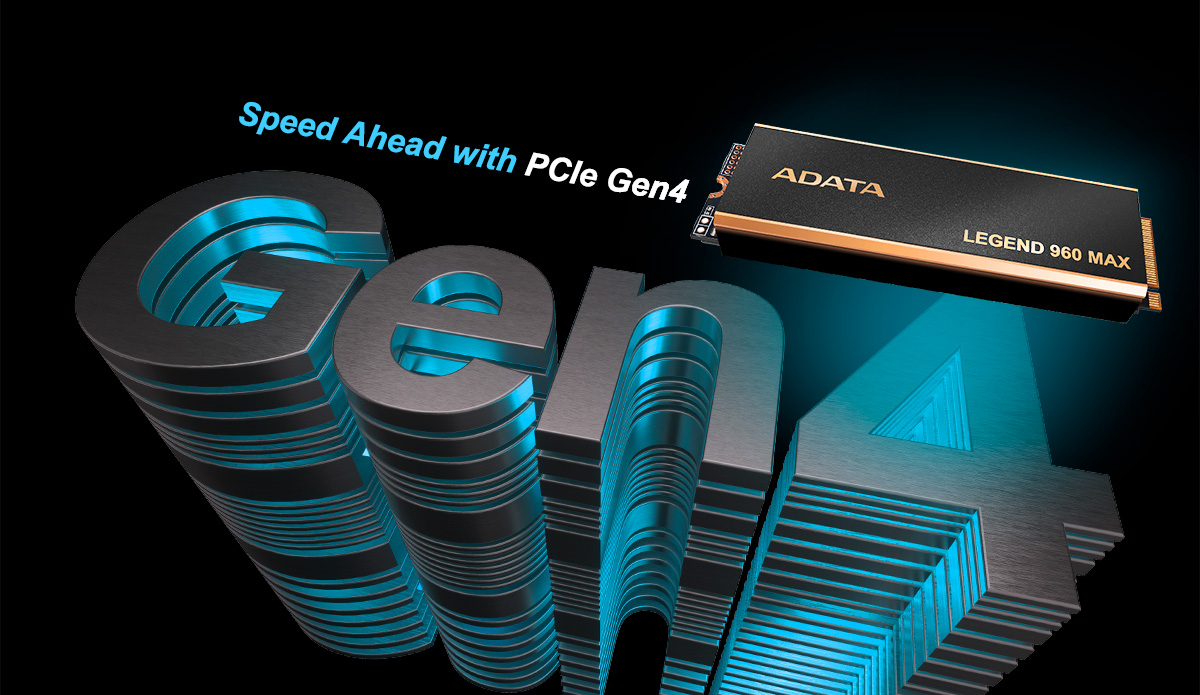
LEGEND 960 MAX supports the latest PCIe Gen4 x4 interface, which meets the NVMe 1.4 standard. It offers mind-blowing creativity and supports the latest Intel and AMD platforms, turning the device into an invincible powerhouse.
Ultimate Performance for Creators
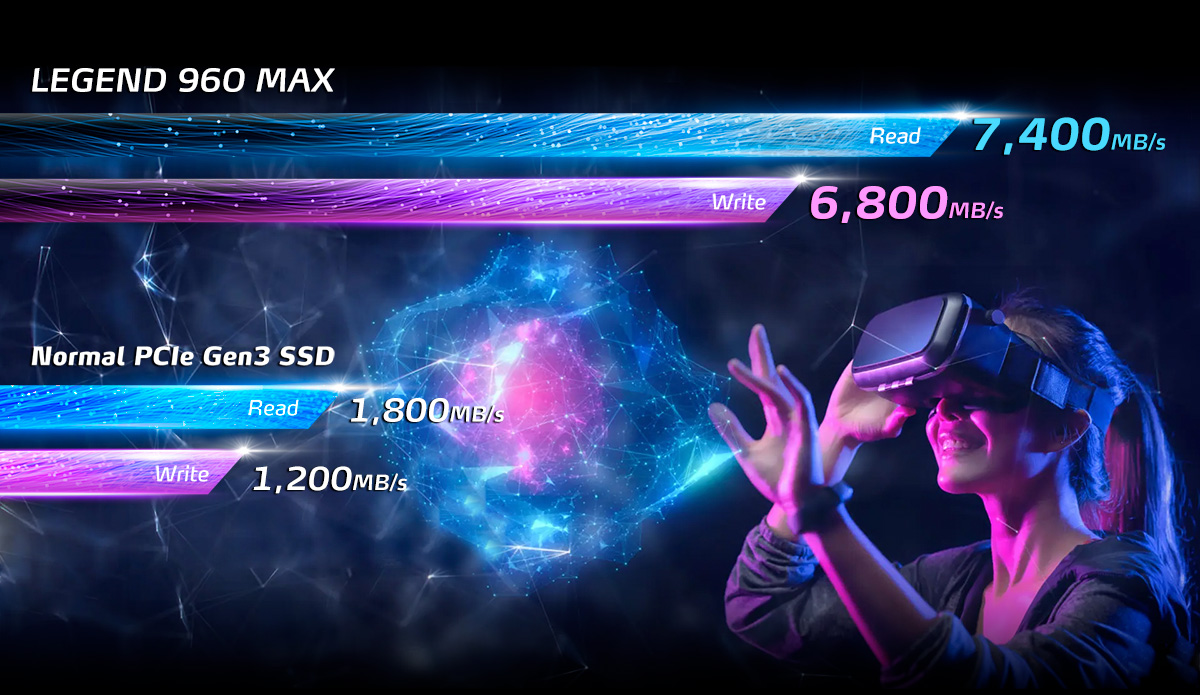
LEGEND 960 MAX delivers a sequential read and write speed of 7,400/6,800MB per second, which is up to 4 times faster than a standard PCIe Gen3 SSD and 13 times faster than a SATA SSD. It is backward compatible with PCIe 3.0 and made for professionals to challenge the impossible.
Max Heat Dissipation, Max Stability
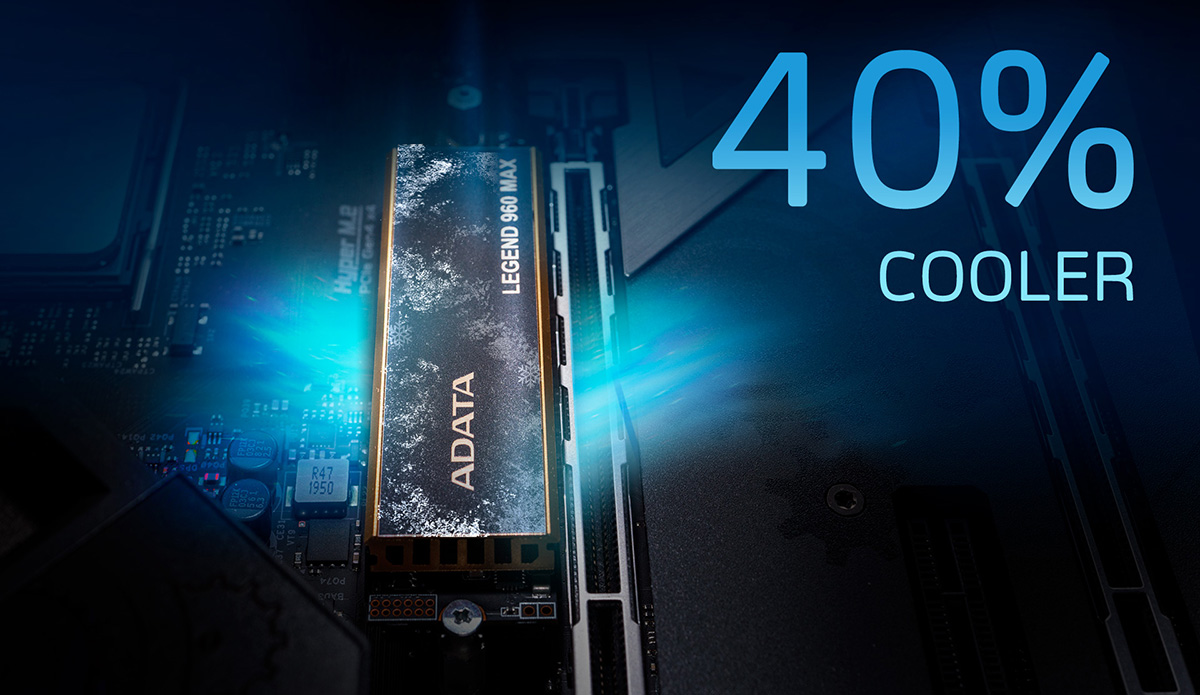
LEGEND 960 MAX's cooling system uses aluminum alloy to thoroughly cover the hard drive to maximize heat dissipation. With multi-layered cooling fins, it allows cool air to flow in along the metal case and push away hot air. The distinctive convection cooling design can reduce the temperature of SSD by 40% and bring out stable performances.
*This product’s SSD heatsink requires installation (instructions: https://www.youtube.com/watch?v=-GBTzqPleAk). Before installing the SSD heatsink, please remove your motherboard’s built-in M.2 heatsink to avoid potential product damage caused by attempting to install two heatsinks at the same time.
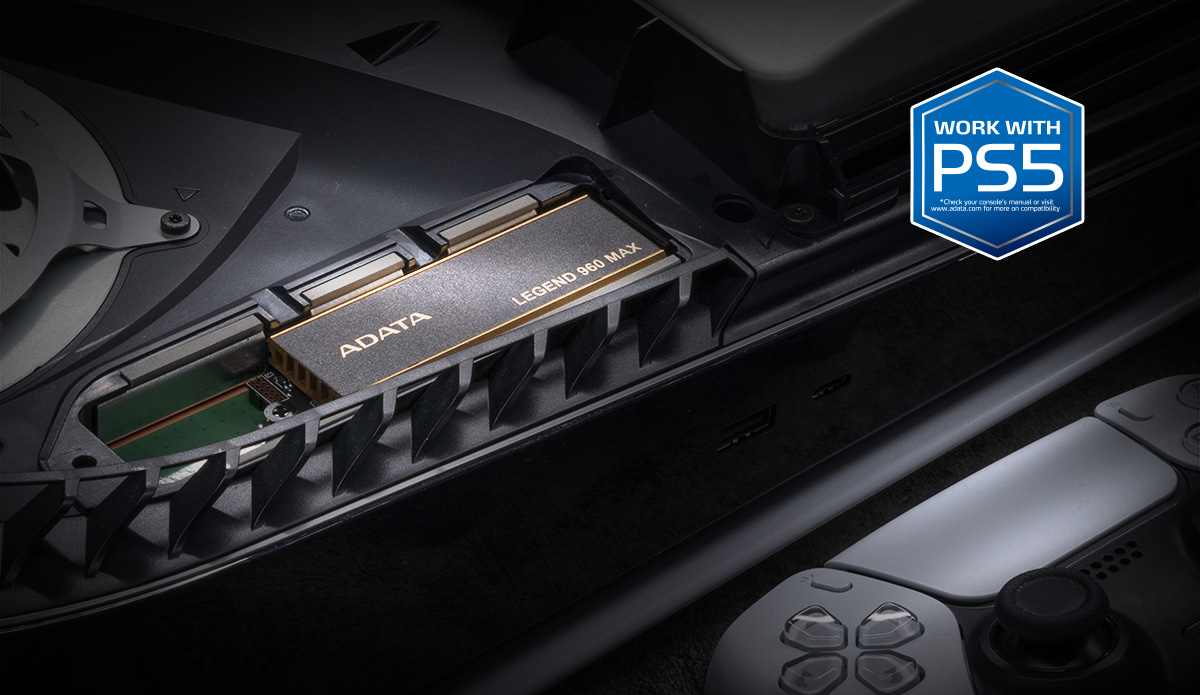
A Perfect Partner for PS5
LEGEND 960 MAX's size conforms to the slot design and can be installed in PS5 consoles as expanded storage, taking PS5's performance to the next new level. With LEGEND 960 MAX, you can enjoy AAA Games with no lag and show the world what you've got!
*According to Sony, even if the read and write speed is higher than the official standard, not all games can actually experience the same performance as the PS5 console's built-in SSD.
Keep Cool and Carry On
Details make the difference. By carefully analyzing the convection design, ADATA presents you with exclusive LEGEND 960 MAX cooling fins, which can significantly reduce the temperature of SSD by 40%. You can enjoy the seamless gaming experience offered by the unique cooling design.
*Thermal information based solely on copying game data from console to this product and from this product to console. Actual results will vary depending on individual testing environments.


4TB Capacity? Challenge accepted
With 3D-stacked flash memory, the LEGEND 960 MAX provides you with capacities of up to 4TB. What's more, it comes with various protection and correction technologies, and high TBW (Total Bytes Written) for durability and reliability.
Eye-catching Performance
LEGEND 960 comes with SLC Caching and DRAM Cache Buffer for advantages in system loading and data caching. It features 4K random read/write of up to 750K/630K IOPS for smoother multitasking.


Create Without Worry
LDPC (Low Density Parity check Code) and AES 256-bit encryption ensure data accuracy and file security.
SSD Toolbox: Your SSD Problem-Solver
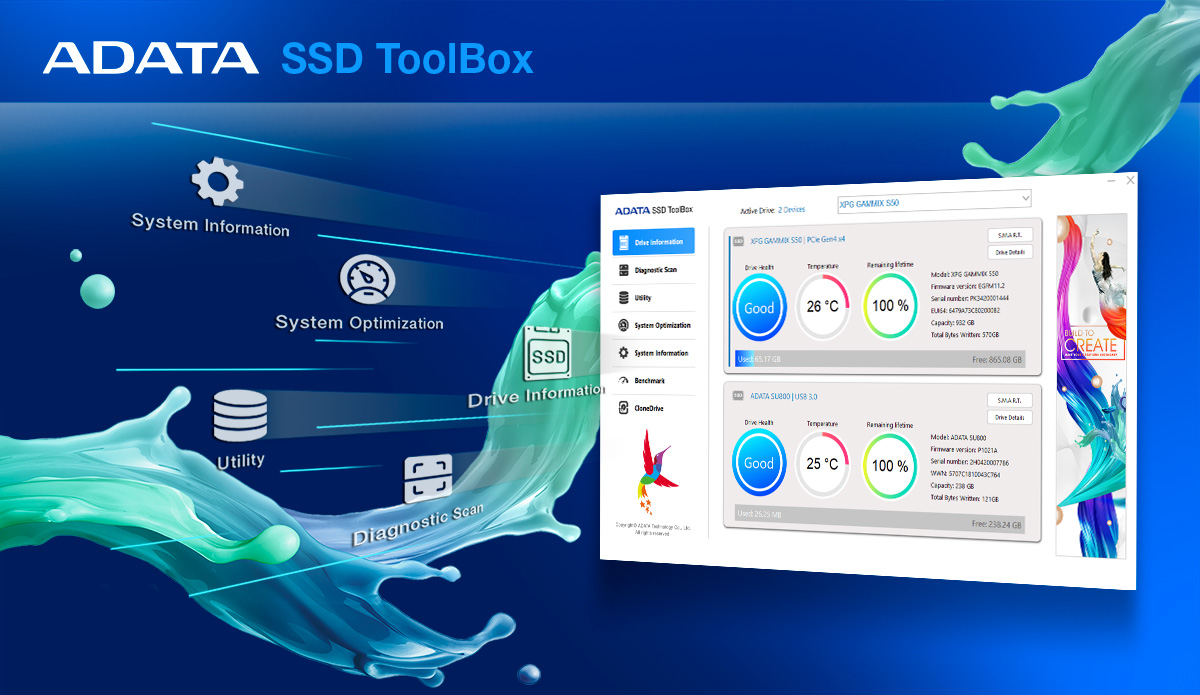
SSD Toolbox helps enhance overall performance and stability through the latest firmware updates, while also resolving occasional minor hardware and software issues. The Dashboard continuously monitors, analyzes, and reports S.M.A.R.T. data, allowing users to check SSD health and remaining lifespan, as well as current operating temperature and storage capacity—so you can stay on top of your SSD status at all times.
*To protect your SSD and valuable data, keep your firmware up to date. Click here to download SSD Toolbox for more details.
5-Year Warranty
LEGEND series solid state drives use high-quality chips that can withstand the test of time and space. They undergo a rigorous verification and testing process to ensure reliability. If that wasn't enough, they come backed by a 5-year warranty.
The LEGEND 960 MAX SSD has won Japan’s GOOD DESIGN Award and features continuous read/write speeds of up to 7,400/6,800MB per second. Its unique 3D radiator fin design can reduce temperatures of SSDs mounted in PS5 consoles by as much as 40%.
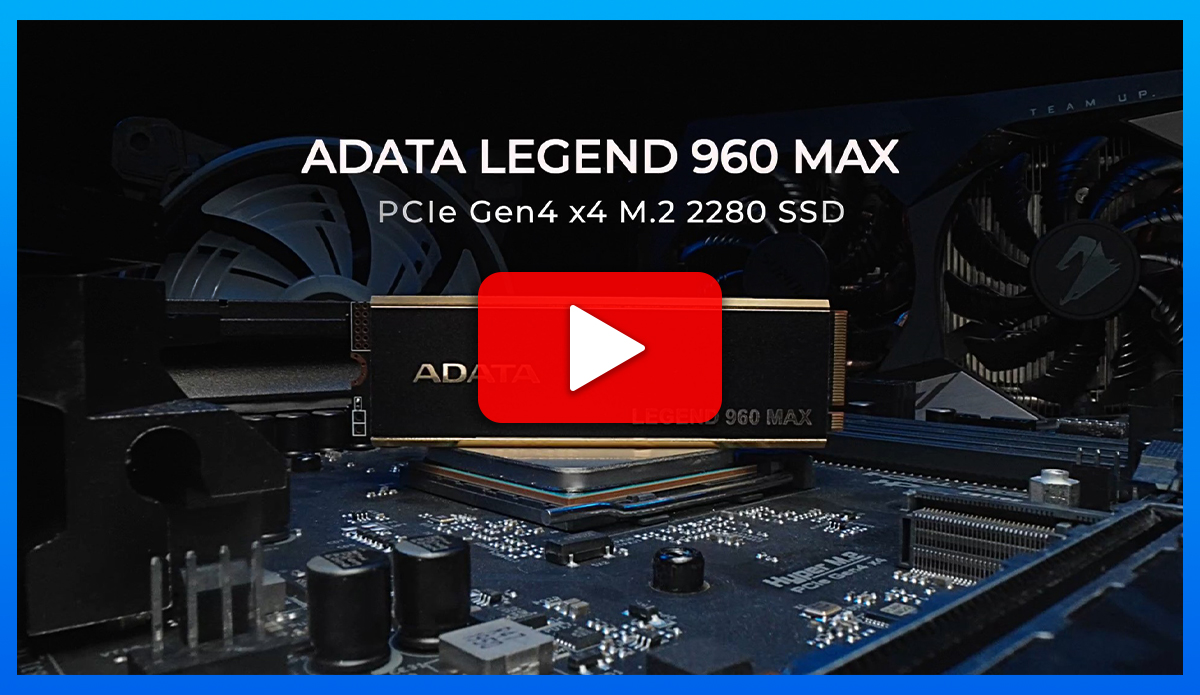
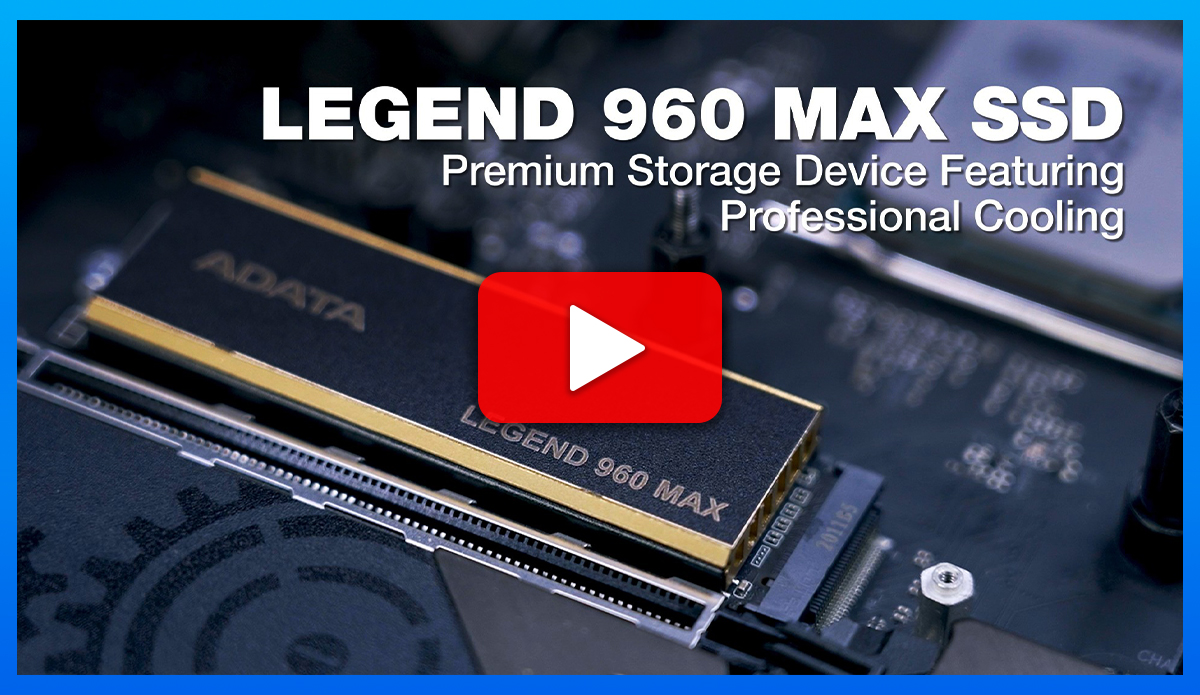
LEGEND 960 MAX SSD Heatsink Installation
Cooling to the Max! System Stability to the Max! Learn how to install the heatsink onto the LEGEND 960 MAX SSD and witness its professional heat dissipation.
| Capacity | 1TB / 2TB / 4TB |
|---|---|
| Form Factor | M.2 2280 |
| NAND Flash | 3D NAND |
| Controller | SMI SM2264 |
| Dimensions ( L x W x H ) | 80.6 x 23.2 x 10.65mm / 3.17 x 0.91 x 0.42inch(with heat sink) 80 x 22 x 3.3mm / 3.15 x 0.87 x 0.13inch (without heat sink) |
| Weight | 36.6g /1.3oz (with heat sink) 7.3g /0.26oz (without heat sink) |
| Interface | PCIe Gen4 x4 |
| Sequential Read (Max*) | Up to 7,400MB/s (PC/Laptop)* |
| Sequential Write (Max) | Up to 6,800MB/s* |
| 4KB Random Read IOPS(Max*) | Up to 750K* |
| 4KB Random Write IOPS(Max*) | Up to 630K* |
| Operating Temperature | 0°C - 70°C |
| Storage Temperature | -40°C-85°C |
| Shock resistance | 1,500G/0.5ms |
| MTBF | 2,000,000 hours |
| Terabytes Written (TBW)(Max Capacity*) | 3,120TB** |
| Warranty | 5-year limited warranty*** |
| Remark | * This product is compatible with the latest Intel and AMD platforms and must be used with a motherboard that supports PCIe 4.0 to achieve optimal performance. Actual performance may vary depending on the hardware and software configurations. * This product is backward compatible with PCIe 3.0. If a third-generation PCIe motherboard is used, this product will be able to achieve sequential read/write speeds of 3400/3000MB per second. * Test system configuration : M/B : MSI X570 Gaming Plus Max , CPU: AMD Ryzen 7 3700X 8-Core Processor 3.6GHz, RAM: ADATA 8G DDR4-266MHz ** The value is the minimum amount of terabyte written that could be reached. *** The SSD is based on the TBW or Warranty period. Visit https://www.adata.com/us/support/warranty/ for more details. |
- A:First, please refer to your system's user manual to ensure the issue is not related to the host device or hardware. We recommended doing some basic software-level troubleshooting. Use SSD Toolbox to check your SSD status, then go to "Utility" in the left sidebar and select "Firmware Update" to update. Once the update is complete, restart your system—this can help resolve intermittent issues like these.Important: Before updating the firmware, be sure to back up your valuable data and keep the system powered on throughout the update process to avoid update failure.
- A:
Please first confirm whether you have set the SSD as a virtual disk (Control Panel>System and Security>Storage Spaces). Toolbox is unable to detect a virtual disk. You can delete the virtual disk in Storage Spaces or format and initialize the SSD in Disk Management. Toolbox will then recognize the SSD.
- A:
ADATA SSD warranties are based on warranty period or Total Terabytes Written (TBW).
1. Please refer to this link for specific warranty information for your product.
https://www.adata.com/en/support/warranty/
2. Please refer to this link for the TBW of your product.
- A:
DRAM buffer is a function designed to improve the efficiency of reading and writing. Generally, it is composed of 1 to 2 DRAM modules on an SSD. Whether an SSD has a DRAM buffer is often decided by the manufacturer according to its market positioning. Generally speaking, entry-level models do not typically have a DRAM buffer.
- A:
Wear leveling is a process that is designed to extend the life of solid state storage devices. SSDs are store data in blocks. Each block can tolerate a finite number of program/erase cycles before becoming unreliable. For example, MLC NAND flash is typically rated at about 3,000 program/erase cycles. Wear leveling arranges data so that write/erase cycles are distributed evenly among all of the blocks in the device.
- A:
SSD TRIM is an Advanced Technology Attachment (ATA) command that enables an operating system to inform a NAND flash solid-state drive (SSD) which data blocks it can erase because they are no longer in use. The use of TRIM can improve the performance of writing data to SSDs and contribute to longer SSD life. Currently, TRIM is used in Windows 7, Server 2008, Mac OS 10.7, and newer versions of Linux. In addition, regardless of operating system, no RAID configuration supports TRIM.
- A:
According to the Serial ATA International Organization the SATA 3.0 specification offers transfer speeds up to 6Gbps compared to 3Gbps for SATA 2.0. Regardless, SATA 2.0 and SATA 3.0 use the same interface and cables.
- A:
At present, various storage methods, including optical discs, hard drives, and SSDs are not ideal for storing data permanently. Therefore, we recommend that important data be backed up to several different devices to diversify your risks.
- A:
The lifespan of an SSD is based on its health. ADATA's SSD ToolBox is a set of auxiliary software for checking SSD health. In principle, your health will be determined by the length of time you use your SSD and the number of read and write cycles. The longer you use it, the more read and write cycles, the shorter the lifespan of your SSD. Generally speaking, SSDs have wear-leveling technology built-in that helps extend the lifespan of your SSD. However how you use your SSD is the main factors in determining your SSDs lifespan. If a large amount of data is written over a long period of time or if you use your SSD in extreme environments, lifespan may be shortened.
Download ADATA SSD ToolBox: https://www.adata.com/us/support/downloads/
- A:
Speeds may vary because different test software use different parameter settings and test methods, and the different testing environments and PC configurations may also have an influence (for example: different motherboards or CPUs, etc.). In addition, the amount of free space, namely lack of, will also affect writing speeds. For better performance, you can try the following:
1. Please check if the slot currently used by the SSD can support the specifications of the SSD. (For example, if a PCIe Gen3x4 SSD is inserted into a PCIe Gen3x2 slot, the speed will be limited by the PCIe Gen3x2 slot)
2. Remove unnecessary software or data from the SSD, or reformat it.
3. Use CrystalDiskMark or ATTO Disk Benchmark to test your SSDs speeds.
4. If your SSDs speed is still slow, please take a screenshot of your SSDs speed test results and send it to our customer service staff for review.
- A:
The difference in capacity is mainly due to the different calculation methods used by your PCs operating system and the SSD. SSDs calculate capacity based on the decimal system, e.g.: 1KB - 1000 Byte bytes, 1MB - 1000KB, 1GB - 1000MB, 1TB - 1000GB, and so on; Your PCs operating system uses the binary system, e.g. 1KB x 1024 Byte byte, 1MB x 1024KB, 1GB x 1024MB, 1TB x 1024GB, and so on. For example, if the packaging shows capacity or 500GB, it is calculated as follows: 500GB x 500 x 1,000MB x 1,000KB x 1,000Byte x 500,000,000,000Byte. Your PCs operating system will calculate as follows: 500,000,000,000 Byte/1024KB/1024MB/1024GB, or approximately 465GB.
Remarks: For a faster calculation method, the capacity listed on the packaging can be calculated as x0.93=SSD for approximate capacity
- A:
HDD Sentinel Health displays anomalies because this tool incorporates the S.M.A.R.T attribute 168 (A8), 159 (9F) fields into the health display, but these two fields are self-defined by each vendor, so these two fields are not associated with health calculations. Please remove the wrong interpretation position of the two fields according to the illustration, and the SSD health can be displayed as normal.
- A:
This is related to the storage format of your SSD. If using the Windows FAT32 format, the maximum size of any single file is limited to 4GB. To avoid this situation, please change reformat your SSD to NTFS.
- A:
Troubleshoot with the following:
1. The SSD has wear-leveling technology built-in to enhance the product's lifespan. The slower speeds may be due to concurrent reformatting, but this situation is not common, especially when it is not a brand new SSD. Contact our customer service staff for help in troubleshooting.
2. Insufficient free space will also affect the writing speed. You can try to delete files to free up space on your SSD.
- A:
ADATA SSDs are designed in accordance with the Serial ATA International Organization standards and have undergone rigorous testing to ensure they work with various operating systems.
Note:
1. NVMe (PCIe) M.2 SSDs require Windows 8.1 or later to support the NVMe driver (we recommend Windows 10 for better the best experience and usability). Linux, including Fedora, SUSE, Ubuntu, and Red Hat, is also supported.
2. AHCI(SATA) M.2 SSDs can be used with Windows 7 or later.
- A:
Since SSDs don't have mechanical drives, so there is no need for defragmentation. Defragmenting an SSD may cause unnecessary wear and tear. SSDs are designed to write data evenly on the entire drive as much as possible, thereby reducing excessive wear on any one location.
- A:
ADATA SSDs can use standard drivers, which can be applied to different operating systems; at the same time, users can also install the drivers officially provided by the motherboard manufacturers. If you have other questions, please contact ADATA's customer service center.
Note:
1. NVMe (PCIe) M.2 SSDs require Windows 8.1 or later to support the NVMe driver (it is recommended to update to Windows 10 or later). Linux series such as Fedora, SUSE, Ubuntu, Red Hat are also supported
2. AHCI (SATA) M.2 SSDs are compatible with Windows 7 and later
- A:
Set up RAID 0 on a compatible motherboard, then connect two SSDs of the same specification to the set port. For detailed instructions, please refer to your motherboard's user manual. The performance of the SSD with a RAID 0 configuration will be double that of a single SSD.
- A:
If you have used the SSD normally before, but then fails to format, please try the following steps:
1. Enter "diskpart" in the command line of the "Start" menu and press "Enter" (or use the "Windows" key and "R")
2. Enter "List disk" and press "Enter" to check the hard disk number (the system disk is Disk 0. If only 1 SSD is connected, it should labeled as Disk 1.)
3. Type "select disk 1" and press "Enter" to select the SSD
4. Type "clean" and press "Enter", the partitions of the SSD will be deleted
- A:
1. Make sure you have already formatted and partitioned your new 2.5" SATA of M.2 SSD. For detailed instructions for Windows 7, please click here; For Windows 8.1 or Windows 10, please click here; For Windows XP, please click here.
2. If your SSD cannot be detected (including unrecognizable, unreadable, etc.) after it has worked normally for a period of time, please follow steps:
M.2 SSD => Loosen the screws and remove the M.2 SSD and check the interface connector for dirt or scratches. Then reinstall it.
SATA 2.5-inch SSD => Unplugged the SATA cable and check the interface connector for dirt or scratches. Then reinstall and ensure the cable is properly plugged in. In some cases, an old cable may cause your SSD to not be detected.
If you have tried the above but the problem persists, the SSD might be faulty. Check your warranty period on ADATA's official website.
Query URL: https://www.adata.com/en/support/warranty/
If it is inconvenient for you to visit a service center for repair, you can apply for online repair at ADATA's website:
https://www.adata.com/us/member/login/
After completing the application, please follow the instructions to properly package the product and then send it to the designated address. After ADATA has received your product, we will begin to process it as soon as possible.
[Important reminder:]
1. ADATA service centers are only responsible for repairing products with malfunctions not caused by the user (the product must have no exterior damage and the stickers must remain intact) The warranty scope and authenticity of the product will be determined by the original factory based on the product received for repair.
2. It is recommended to take photos of the front and back of the product for your later reference before sending it in for repair.
3. ADATA only repairs the product and does not provide data backup services. Please be sure to back up your data. If the data is lost or damaged due to the repair process, the ADATA will not be held responsible.
- A:
If you encounter this problem, please refer to your motherboard's user manual or the manufacturer's website. Motherboards vary by model and brand. The type and quantity of I/O ports are not the same; therefore, when a SATA or NVMe M.2 SSD is inserted into the slot, it may be affected by I/O. The sharing of channels by the ports results in a limited number of channels supported by the chipset, rendering some 7pin SATA sockets unusable.
- A:
PCs that do not support PCIe Gen4 SSDs can still use the said SSDs. However, the SSDs performance will be limited to PCIe Gen3 levels.
- A:
Firstly check the make and specifications of your motherboard on the manufacturers website to see if it has M.2 slots that support PCIe 4x4. If there are two M.2 PCIe 4x4 slots, you can use the direct link to the CPU terminal (center Processor) M.2 socket for better performance
- A:
Firstly, confirmed your SSDs form factor - M.2, mSATA, or SATA. Locate the correct slot type on your motherboard, insert your SSD and secure it with screws. For video instructions, M.2 SSD on desktop please click here, M.2 SSD on laptop please click here, SATA SSD on desktop please click here, SATA SSD on laptop please click here.
- A:
If you have an M.2. 2280 SSD, you can find installation instructions here.